In this lesson, we create a variable called score and update it when a collision occurs. The code occurs in our “Play game” broadcast while moving the ship.
We add the following code:
So that the code becomes:
We add a variable called Still playing to keep track of our current game state:
And the score is only reset during initialization when “StillPlaying” is false.
In the case that the ship is missed after movement was completed,, we simply set “StillPlaying” to false and our score is reset during initialization:
That’s it for our main logic!
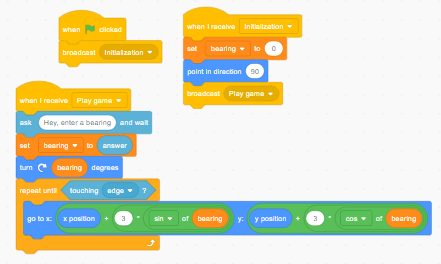
Here’s the full code for the spaceship:
Here’s the code for the planet:
A full implementation with all the bells and whistles can be found here:
In this part , we update our ship’s initialization to return to a static point after motion as well as add our planet which appears at a random position when the game starts.
First, return our spaceship to it’s starting position:
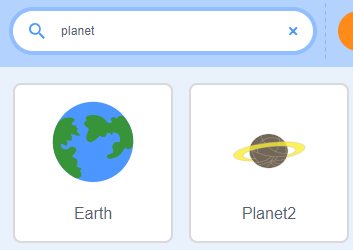
Next, Add the planet sprite:
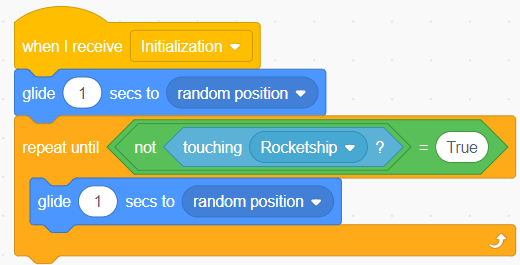
And now we set up the initialization to choose a random starting position:
(ENSURE THAT WE ADD THE CODE BLOCK TO THE PLANET’S SPRITE!!!)
In the next part, we’ll update the score on a collision , and reset the score to 0 when a miss occurs.
In this part, we move our spaceship until it touches the edge.
We will move our spaceship 3 units at a time in the direction it’s facing until it touches the edge of the screen.
First setup the constraints for moving until the edge is touched. We accomplish this using a looping construct and a sensing block:
Now we add the following code block to move the ship:
It’s setup is shown here:
It is important to note that you don’t need to understand how the codeblock above works, only that it moves the ship 3 units in the direction it’s pointing!
I’ve produced a video on this tutorial , the most notable difference is that the sprite was rotated to simplify movement. This means that the block below was able to be replaced by a simple move block.
The older tutorial is below:
Introduction
In this tutorial, we’ll be developing a simple game from beginning to end. We’re going to go through all the many, many subtasks that goes into developing our game.
This project is a problem solving one.
In this development project, our problem statement is
represented by the task at hand.
The task
Create a simple game using scratch. The player is prompted to enter a bearing for a spaceship which then adjusts its direction and travels forward in that direction. The objective of the game is to hit a planet which is subsequently destroyed, If the player is successful, increment his score, otherwise the game ends.
Part 1 – Setting up the sprite
First, I’m going to create my scratch project. And name it “Planet Destroyer – Lesson Tutorial”:
Now, we replace our
sprite with one more suited to look like a rocket.
First delete the default sprite
by clicking the x on the sprite.
Next choose a sprite using the “Choose a sprite” button
Search for “Rocket” and select the rocketship.
Now we have a rocketship added to our project.
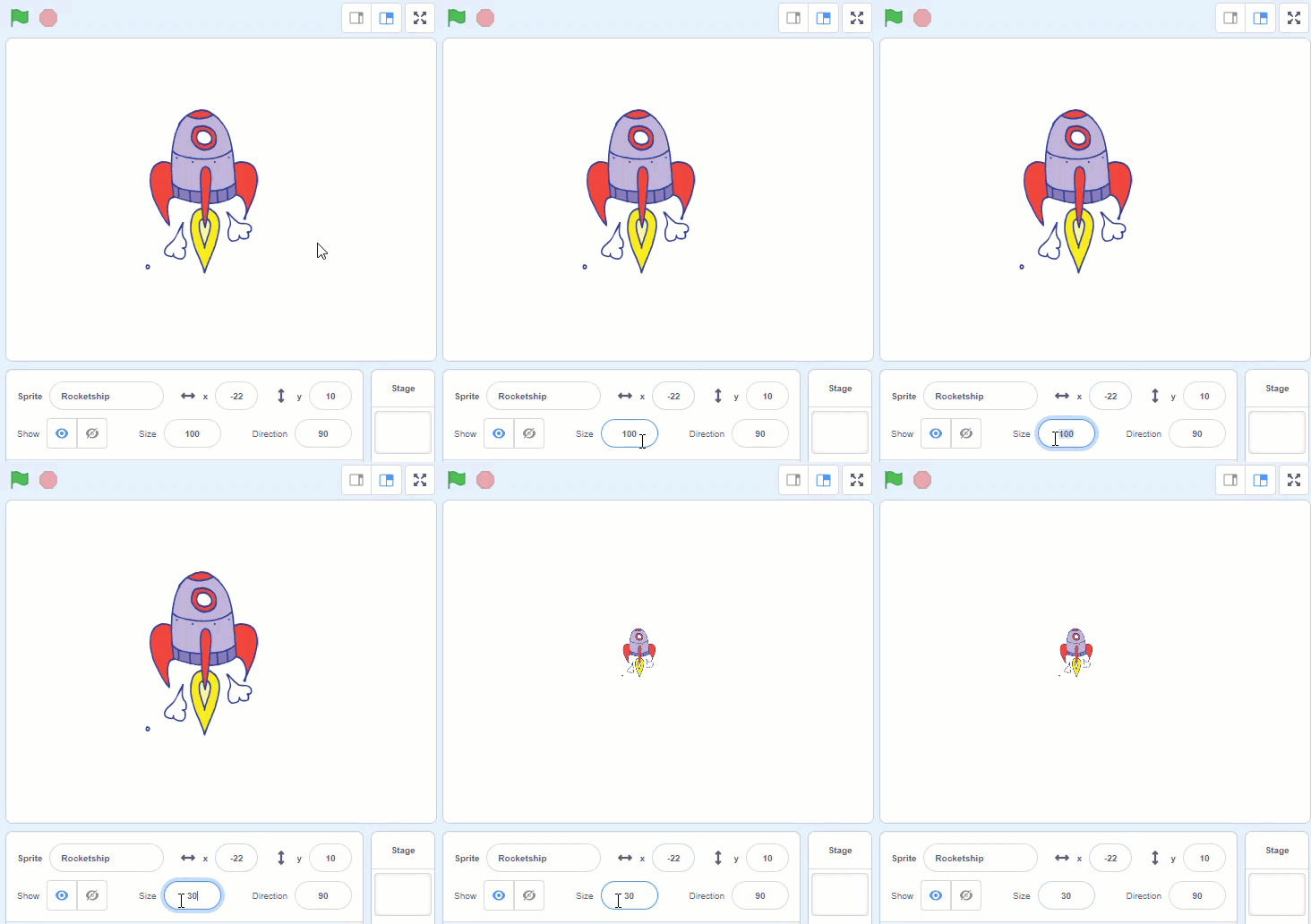
My rocketship is taking up a lot of space, so let’s reduce it to about 30%:
A person involved in all aspects of software creation and documentation. Software creation includes Development , Maintenance and testing. Documentation involves instructions (written documents and videos) on how to use the specific software.
Additional Context:
A software engineer is a team member mainly responsible for designing , creating and testing software based on requirements that were documented about a real world system. E.g The engineer(s) may be needed to build an online banking system for a bank with very specific requirements of how the website should operate and what it allows it’s users to do.
Software engineers also perform the duties of system analysts also, meaning that they are involved in determining requirements for documentation based on client requests and observing the existing system.
They may also be involved in the programming for the system, but this is not always the case.
Programmer
a person who writes computer programs as part of a team or as an individual.
Additional Context:
A programmer is a team member mainly responsible for writing program code to develop software based on the specifications that are determined from the system requirements. E.g the programmer may have to write code to facilitate banking transactions on the website.
Computer technician
A computer technician is an individual who identifies, troubleshoots and resolves computer problems. Computer technicians possess skilled knowledge, hands-on experience and different tools to repair and maintain computer hardware, software and network/Internet issues. A computer technician is also known as a PC technician or PC repair technician.[1]
Additional Context:
A team member that is mainly responsible for maintaining computer hardware, installing software updates and repairing computer systems. The technician does not design or create or design software websites or networks, but keeps the organization running by maintaining computer systems and networks.
Web designer
Designs the overall look and layout of a website.
Additional Context:
A web designer is a team member responsible for working with a client to determine the requirements of a website in terms of how it looks and it’s functionality. The web designer then passes the design requirements to a web developer who determines the technical specifications for the website and in turn creates the website. A web designer can also be a web developer.
Summary
Career
Description
Additional Context
Software Engineer
A person involved in all aspects of software creation and documentation, including development, maintenance, and testing.
A software engineer is responsible for designing, creating, and testing software based on documented requirements. They may also be involved in determining system requirements and performing programming tasks.
Programmer
A person who writes computer programs as part of a team or individually.
A programmer is responsible for writing program code to develop software based on specifications determined from system requirements.
Computer Technician
An individual who identifies, troubleshoots, and resolves computer problems.
A computer technician is responsible for maintaining computer hardware, installing software updates, and repairing computer systems. They do not design or create software, websites, or networks, but keep the organization running by maintaining computer systems and networks.
Web Designer
Designs the overall look and layout of a website.
A web designer is responsible for working with a client to determine the requirements of a website in terms of appearance and functionality. They pass the design requirements to a web developer, who determines the technical specifications for the website and creates the website. A web designer may also be a web developer.
UPDATES
2022 – 9 – 11 : Added additional context for each of the four disciplines.
2023- 1 – 29 : Added summary (Same information formatted as a table)
Flowgorithm is an awesome graphical programming language that you can use to generate flowcharts , trace tables and actual program code.
If you’re not already using flowgorithm , you should be , or at least be using some equivalent solution.
Flowgorithm ,however, has one main drawback out of the box – It does not use the convention and regular shapes expected by CXC CAPE and CSEC; and NCSE.
See both images below:
Wrong shape/convention used
Correct shape used!
You MUST configure flowgorithm to fit the expected conventions. Here are the steps:
 Example of how laptop performance slowly declines due to airborne dust slowly collecting on internal heatsinks, reducing performance and increasing noise from high speed fan operation. Eventually the heatsink covers completely, stopping all cooling airflow no matter how fast the fan spins, and the laptop begins to overheat from even just minor load.
As shown in the top-left image, the external appearance of air intake vents provides no indication whatsoever of the internal clogging, and simply blowing air backwards through the exposed heatsink vents is not enough to remove this buildup. Instead the laptop must be disassembled and the dust and lint removed with a ESD-safe vacuum cleaner.

This photo montage was created from a 2.5 year old Dell XPS M170 laptop.

DMahalko, Dale Mahalko, Gilman, WI, USA -- Email: dmahalko@gmail.com, CC BY-SA 3.0 <https://creativecommons.org/licenses/by-sa/3.0>, via Wikimedia Commons
Create a table
showing the dos and don’ts of caring for a computer.
Use the following structure:
Risk to consider
Do
Don’t
{put risk here}
{good practice here}
{practice to avoid}
Portfolio Assignment
Update your table to ensure that you have covered the
following criteria/areas:
Adverse temperatures;
blocked vents;
Dust; Liquids; Magnetic fields; Shutting down;
Unplugging when not in use; Cleaning screen, keyboard;
Battery charging cycles; Repetitive use of certain
keys;
Complete the table in your ICT notebook.
Create a hand written copy of your table, that is meant to
be inserted into your ICT portfolio for marking.
Suggested Solution to above assignment
Risk to consider
Do
Don’t
Temperature
Use and store your computer system in a cool area.
Do not store or use your computer in a heated environment. (e.g. leaving a laptop in a hot car; Do not
use your computer system in a heated room, stored in direct sunlight)
Vents
Do use your computer in an environment with sufficient ventilation.
Do clean vents regularly.
Ensure that vents are not blocked during use.
Do not use a laptop resting directly upon a bed or carpeted area.
Dust
Do use your computer in a dust free environment.
Do not allow for dust to build up on your computer system over time.
Liquids
Do use your computer in a dry area.
Do not use liquids near your computer.
Magnetic fields
Do not use computer systems near objects which produce large magnetic
fields. E.g. refrigerator, washer, dryer and large subwoofer speakers.
Shutting Down
Always shut down your using the provided interface, e.g. the windows
shut down menu.
Unplugging
Do not unplug your computer while using it.
Cleaning the screen
Do clean your screen regularly.
Do not use cleaners that are not meant to clean your screen.
Do not use water or a damp cloth to clean your screen.
Keyboard care/damage
Do use compressed air canisters to
clean your keyboard.
Do use low powered vacuum cleaners on your
keyboard
Do not press the keys on your keyboard excessively hard.








 Island Class