Instruction: Students are instructed to rewrite the instructions in a concise and precise manner with the expectation that the recipient of the instruction is motivated to achieve the goals of the instruction; i.e. the recipient understands the intent of the instructions and is not subject trivial misinterpretation which can lead to faults.
Moving From documenting an activity to solving problems
When solving a problem the following the steps to be followed:
Information gathering;
Brainstorming;
Identification of resources;
Evaluation of pros and cons of multiple solutions;
NB - not all ports are mentioned in this post e.g ps2, serial, parallel ports etc. This content focuses on the requirements of our NCSE ICT syllabus.
Computer Ports
Computer ports can be found on the system unit and serves as points of connection to various peripheral devices via wired cabled or wireless transmission media.
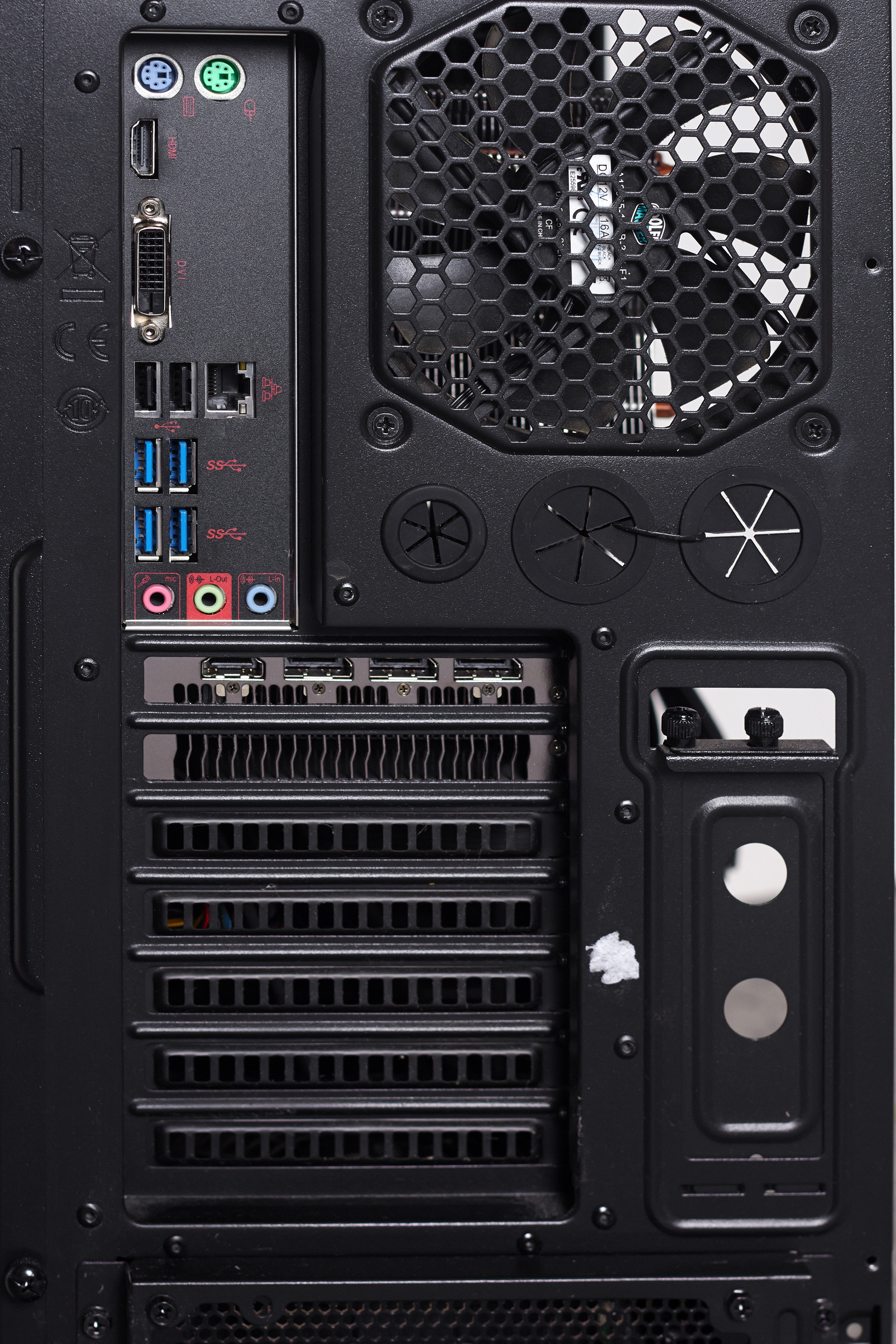
A view of a system unit’s ports is shown below:
Output Devices And Ports
Video output to a computer monitor (or any other visual display unit [VDU]) can be achieved by sending signals from the system unit’s graphics circuits via specific display port over a cable and to the monitor/screen.
Two types of video ports are VGA and HDMI
VGA – Video Graphics Array
This technology has been around since 1978 , and is essentially a chipset for graphical display. A VGA cable connects one end to the system unit’s VGA port and the other to a VGA port on the VDU (Projector, computer monitor, Smart TV, etc)
The system unit’s VGA port is shown below:
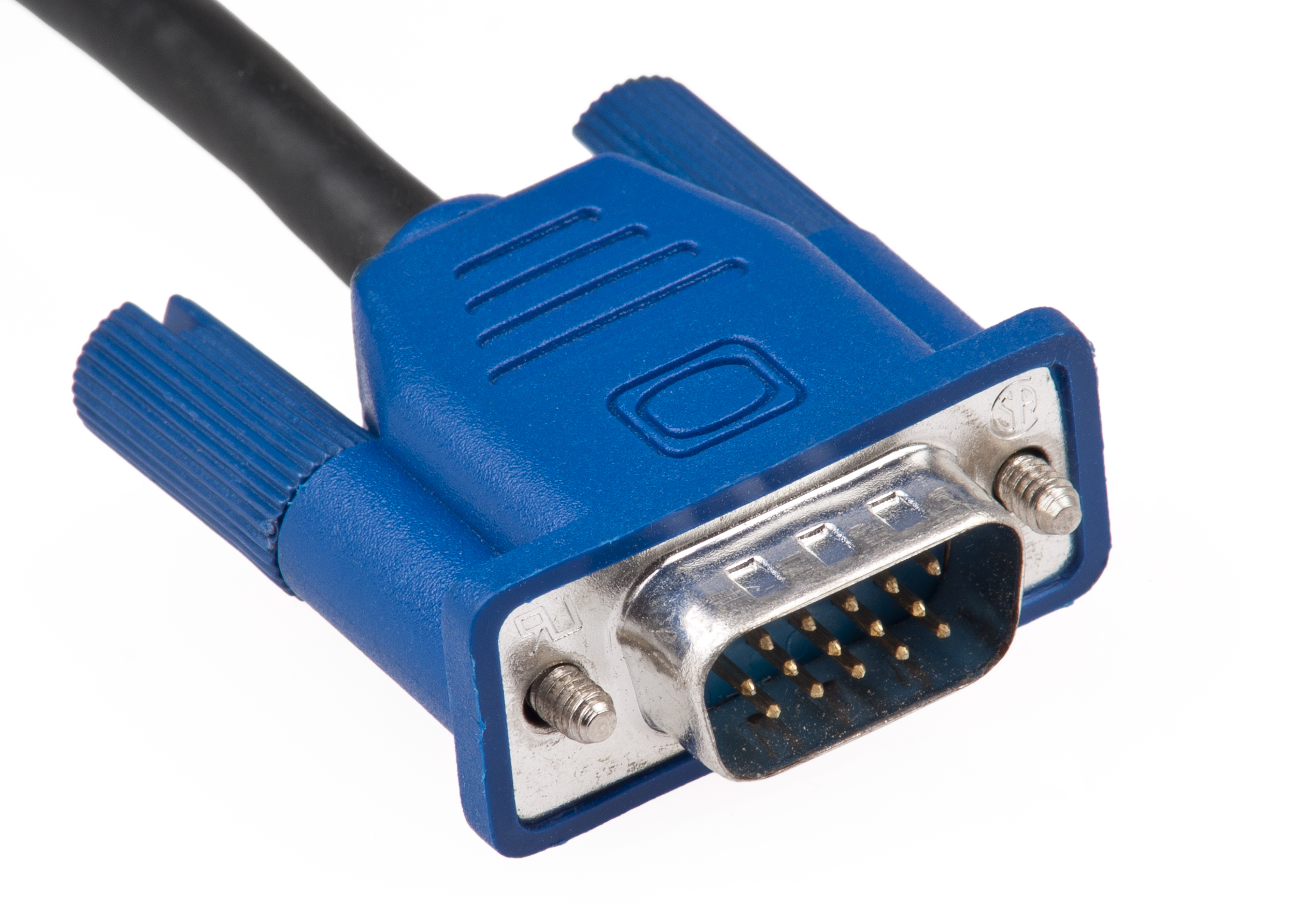
Below is an image showing the end of the cable VGA Cable which connects the VGA Port:
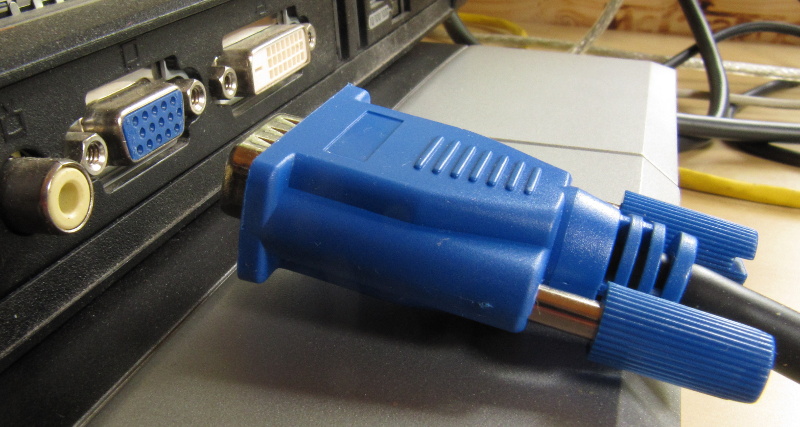
Below is an image shown how the cable is intended to be connected via the port for our VGA technology:
Characteristics of VGA Technology
VGA technology,
is affordable and the cheapest option. VGA only Devices are very cheap, as opposed to other devices that include HDMI etc.
is widespread, popular and can be easily found world wide
can display up to 256 colors
Displays a reliable resolution for most applications, however other technologies can display sharper and clearer images at high resolution.
HDMI – High Definition Multimedia Interface
This is an another output technology which outputs high quality , high resolution video and sound via HDMI ports and cables. One cable’s end connects to the System unit’s hdmi port and the other to a VDU which can also output sound.
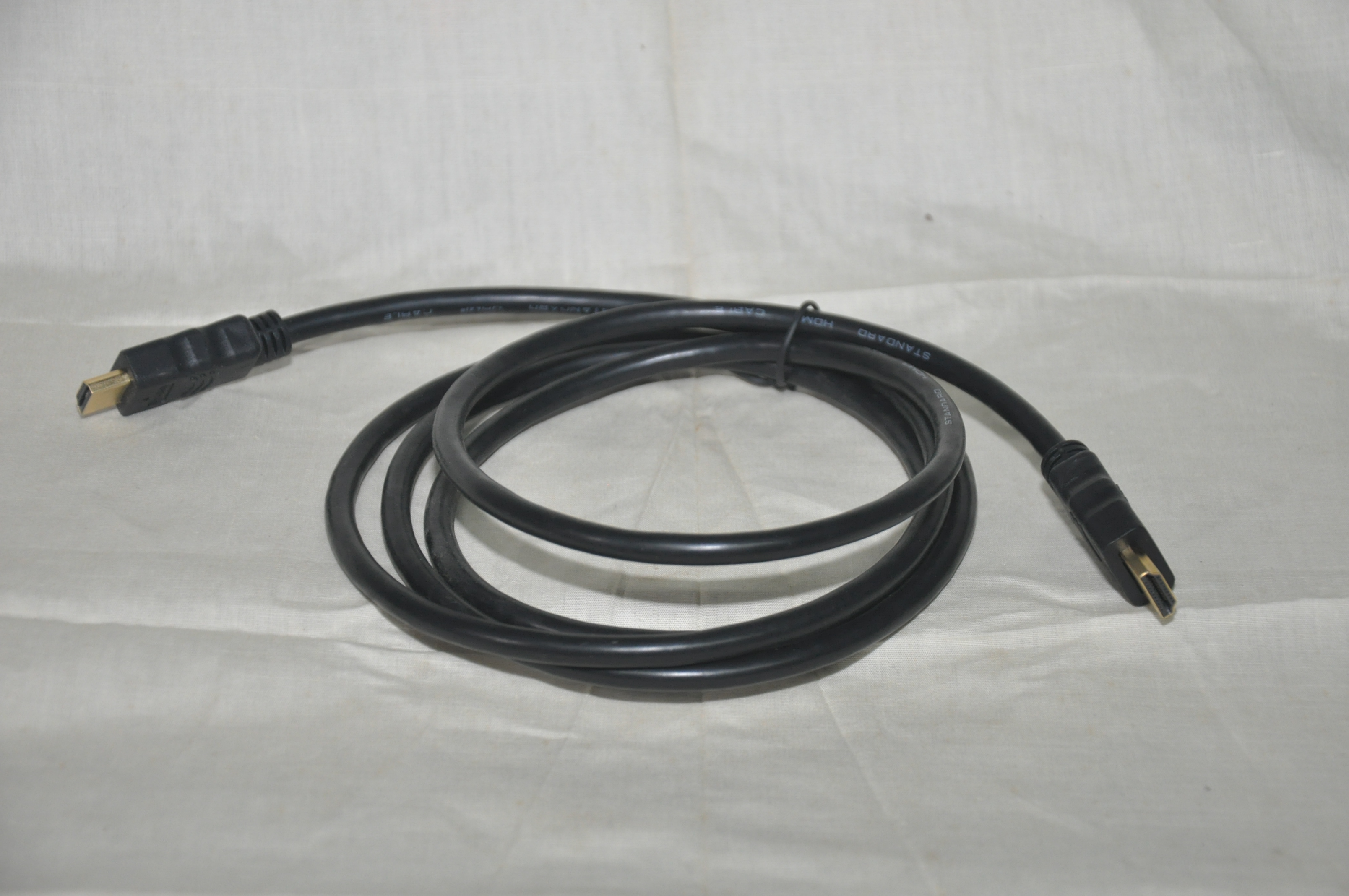
An image is shown below of an HDMI Cable:
An image is shown below of an HDMI Cableport on a VDU:
Communication Ports
Communication Ports allow for computer networking.
Ethernet port (RJ45)
This is a very common standard of networking which uses a wired cable connected via and ethernet port. The ethernet cable can be used to connect 2 PCs, or a pc to network hardware, or even one network to the next.
An image of an ethernet cable with a RJ45 connector end is shown next to a laptop’s RJ45 connector(Right). (The port on the left on the laptop is a RJ11 Connector used for land line phone connection):
A special type of port , USB – Universal Serial Bus
USB technology was developed with the intention to connect many device types to the computer system and/or each other via USB Ports and Cables. E.g networking 2 computer systems, connecting to game consoles to each other for playing videogames etc.
Devices include input , output , external storage devices, communications devices and specialized devices.
Input devices
Keyboard, Mouse, Graphics tablets
Output
Printers,VDUs, Audio
External storage devices
Flash Drives, External Hard Drives
Communications devices
Wireless Networking, Wireless Modems
Specialized devices
Security dongles, Video Cameras, Audio equipment, Midi Keyboards and Controllers.
Fire wire
Firewire is a standard similar to USB that was developed to connect multiple device types to the computer system.
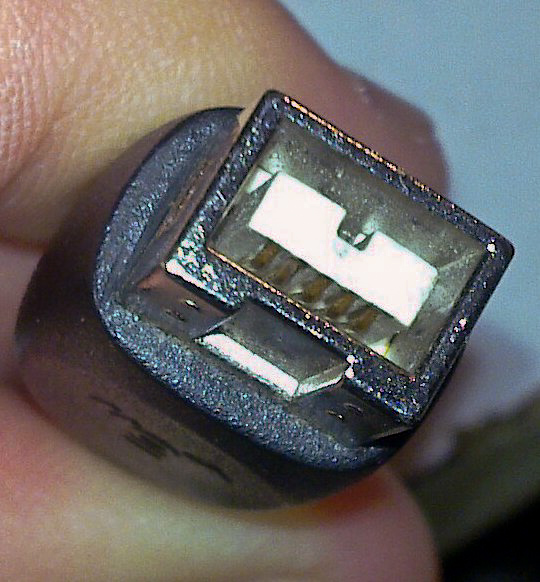
Below is an image of a firewire port:
A firewire cable end:
Internal Ports – SATA and IDE
Within the computer’s system unit various ports, connectors and cables are used to connect devices internally so that they can be manipulated by the computer system
Mass storage devices, such as optical disk drives and hard drives, are connected to the system using two types of technologies:
IDE – Integrated Drive Electronics
SATA – Serial Advanced Technology Attachment
IDE – Integrated Drive Electronics
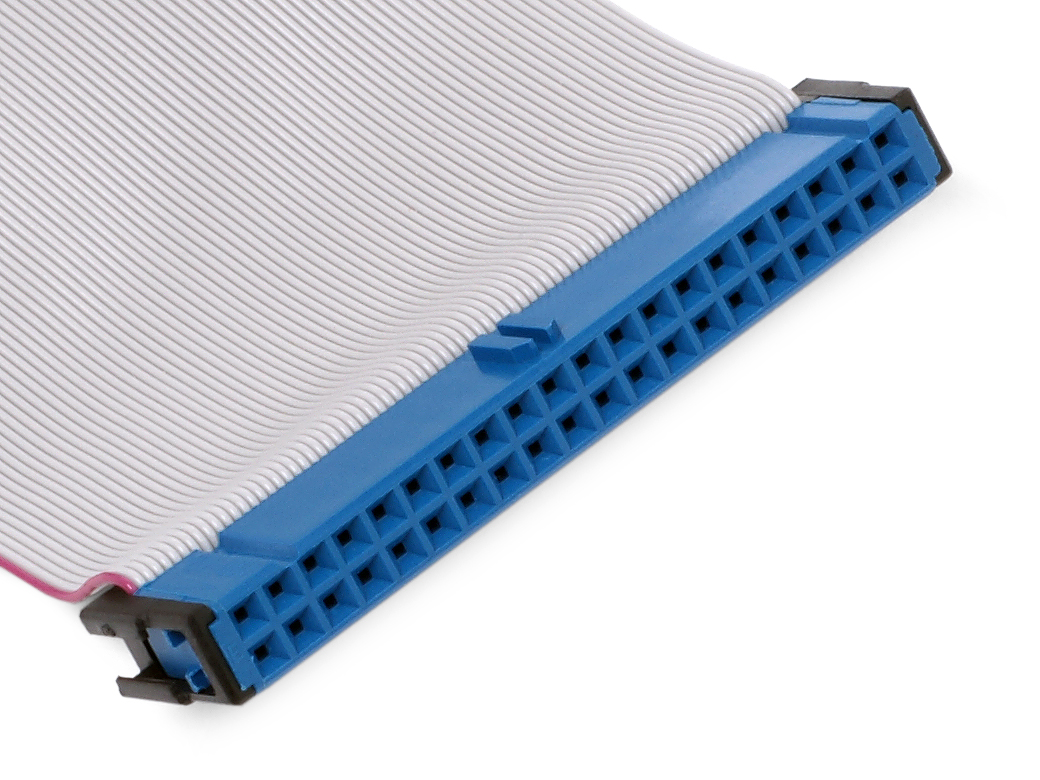
This was an earlier technology which was created for mass storage via the device and a multi wired cable in the form of a ribbon. This method of data transfer uses “parallel communication”. (At this level we will not delve into what parallel communication is, more so that we note that it is a defining characteristic of the technology.)
An IDE Hard drive is shown below with a space of connection to the ribbon cable on the bottom left:
An IDE ribbon cable is shown below for connection to either the storage device or the computer system’s circuitry (motherboard):
An IDE Connector on the computer system’s circuitry (motherboard)
SATA – Serial Advanced Technology Attachment
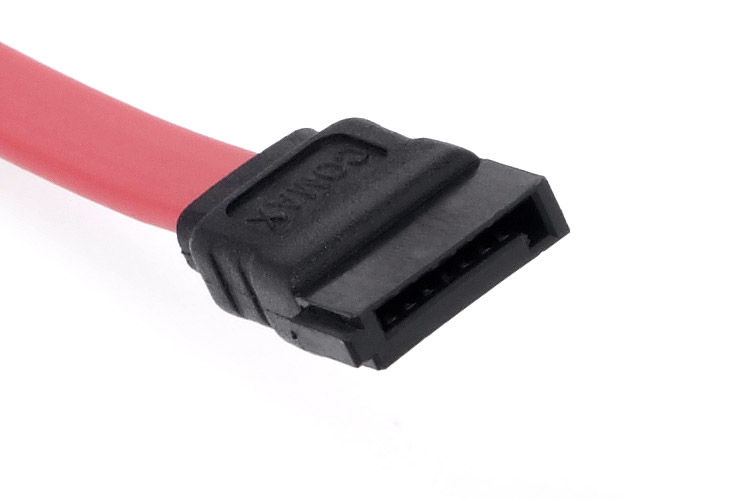
SATA was meant to be a an improvement over IDE Technology. SATA connects mass storage device via SATA Ports and Cabling. This method of data transfer uses “parallel communication”. By the nature of SATA Technology’s design it’s cabling is less bulky than IDE and less expensive making it more popular. Data transfer is much faster as compared to IDE with SATA transferring approximately 45 times faster than IDE Technology.
Below is a picture of a SATA hard drive:
A SATA Data Cable
Below is an image of SATA Cables connected to the computer system’s circuitry (Motherboard)
UPDATES TO THIS POST
28th Sept 2022 – Added “Smart TV with a HDMI port” as an example for a VDU.
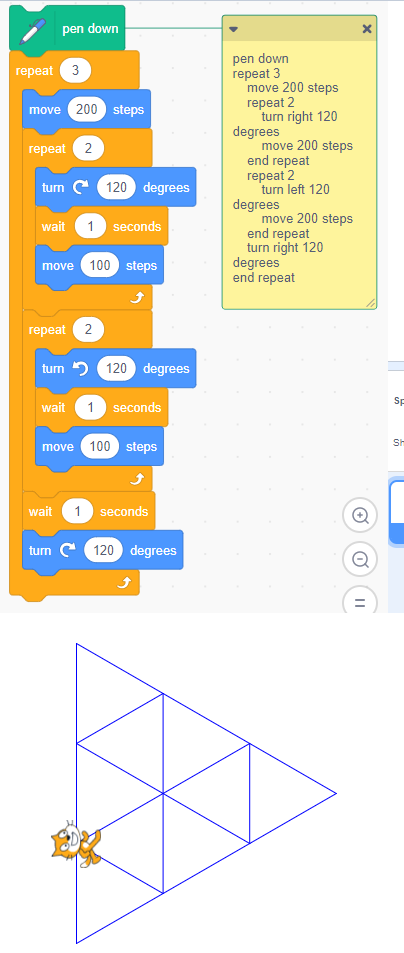
pen down
repeat 3
move 200 steps
repeat 2
turn right 120 degrees
move 200 steps
end repeat
repeat 2
turn left 120 degrees
move 200 steps
end repeat
turn right 120 degrees
end repeat
Draw the shapes from the following snippets of scratch code:
Exercise 1
pen down
repeat 4
    move 100 steps
    turn right 90 degrees
end repeat
Exercise 2
pen down
repeat 3
    move 100 steps
    turn right 120 degrees
end repeat
Exercise 3
pen down
repeat 3
    move 200 steps
    repeat 2
        turn right 120 degrees
        move 200 steps
    end repeat
    repeat 2
        turn left 120 degrees
        move 200 steps
    end repeat
    turn right 120 degrees
end repeat
Task: Create a solution which accepts 10 temperatures in Celsius and outputs “it is hot” if the temperature is greater than 30 degrees, otherwise output “it is cold”
Start
    // Task: Create a solution which accepts 10 temperatures in Celsius and outputs "it is hot" if the temperature is greater than 30 degrees, otherwise output "it is cold"
    //
    // Start Declaring Variables
    // End Declaring Variables
    // Start Variable Initialization
    //
    counter = 1
    maximum = 10
    currentTemperature = -999.99

    // End Variable Initialization
    //
    loop while counter <= maximum
        output "Please enter temperature value #" + counter
        input currentTemperature
        if currentTemperature > 30 then
            output "it is hot"
        else
            output "it is cold"
        end If
        counter = counter + 1
    end while
    output "Ending program"
end
Demo: 1. Visit Scratch.mit.edu or open scratch version 3 2. Add the pen addon to the scratch project 3. Experiment with the blocks that use the pen 4. Draw a square of side 50 units
Task: Prompt the user to enter a value and store it in a variable called “Side”. Proceed to draw a square with a length of side equal to “Side”. (Assume the user enters a size that can fit in the stage area.)
Using Scratch Online, create a game on a topic of your interest. Please include the following: 1. Name of the game 1 mk 2. Instructions on how to use the game 1 mk 3. Good use of color and stage area 1 mk 4. Moving a sprite with the keyboard / mouse 2 mks 5. At least 1 loop (e.g. using the forever or repeat block) 2 mks 6. At least 1 If block (e.g. using an If block) 2 mks 7. At least 1 Variable (e.g. score) 2 mks 8. At least 1 Sensing block 2 mks 9. At least 1 Say block 2 mks
-SUBMIT A WORD PROCESSING DOCUMENT WHICH CONTAINTS THE INSTRUCTIONS AND A LINK TO THE GAME -Keep all work PG13 -ONLY GROUP LEADERS ARE ALLOWED TO SUBMIT
See the video as a general guide on submission instructions. (Recorded previously on 2022-












 Island Class


