See the following objective content and related videos
These videos were chosen for each topic because they cover the subject matter in a relevant context. They definitely were not created specifically for the CSEC Syllabus, however , they do address the fundamental concepts in real world scenarios.
Evaluate the reliability of information obtained from online sources;
Evaluation of information retrieved electronically for authenticity, currency, relevance, and bias.
See the following objective content and related videos
These videos were chosen for each topic because they cover the subject matter in a relevant context. They definitely were not created specifically for the CSEC Syllabus, however , they do address the fundamental concepts in real world scenarios.
Distinguish between data and information;
Data as raw unprocessed facts;information as processed data.Sources of data and information (people, places and things).Document types: turnaround document, human-readable and machine-readable forms; hard copy, and soft copy.
And complete the following tasks as demonstrated by the videos at the end of this post:
Task
Task Instructions
1
Apply a range name to the table used in the vlookup. Name this range “PriceList”
2
Update the Vlookup function to use the “PriceList” Name range
3
Use a range name for the percentage and update the formula which calculates the vat
4
Insert a new row for “Cinnamon rolls” which sold 2000 items
5
Insert a new column “Hot Seller?”. This column will contain a value of “Yes” if more than 1500 Items were sold for the month and “NO” otherwise. Implement this using an “if” function.
6
Apply a custom sort, First sort by “Hot Seller” Descending then by “revenue per item” descending
7
Apply an advanced filter using to show items that weren’t hot sellers but sold more than 1000 items
8
Create a pie chart showing the net revenue per item
9
Create a barchart showing both the revenue per item and the vat per item
10
Move the tables and constants to a new sheet, “Constants”. i.e the vat value and price list. Observe how the formula for the vlookup has changed.
Add a new column, “Discounted price” to the sales table . Add a new constant called Discount to the Constants sheet with a value of 6%. Use this value to calculate the discounted price per item in the sheet.
See the video demonstrations below for the tasks outlined above.
The above video was continued in another class session:
In this tutorial, we seek to use the basic arithmetic operations addition subtraction multiplication and division to accomplish complex tasks.
Usually when using a computer system to represent addition subtraction multiplication and division we use the following symbols respectively:
Addition
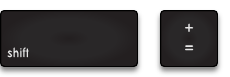
The plus sign : +
Hold shift and press the plus sign
Subtraction
The hyphen: –
Hyphen Key
Multiplication
The asterisk : *
Asterisk key
Division
The front slash: /
Front slash key.
Tutorial:
Click the link below to download the file. Do not open the documents using Google Sheets, rather download the documents and open it with your desktop application of Microsoft Excel:
This tutorial demonstrates how a spreadsheet can be used to perform a complex calculation. The complex calculation chosen is the quadratic formula.
Note that you do not need to have an intimate understanding of the quadratic formula. All you will need to do is to break down the quadratic formula into its sub parts, and represent those parts using functions and formulas in your spreadsheet software.
This Excel document contains two worksheets. Use the first worksheet to fill in formulas and functions which can be used to calculate the items shown in the labels.
How to fill the sheet:
A copy of the sheet is shown below:
Advanced formulae tutorial
Start filling in the correct formula for each level shown in the sheet. For example, you would start with the label negative B an insert a formula in the cell next to the label which would calculate the volume negative B. In this case you would enter =-1*C10 Into cell location H3.
Continue following all the way down for b squared, 4ac …. All the way until you have calculated root 1 and root 2.
The second sheet contains notes and solutions to the first worksheet.
Homework
Complete the challenge listed in the sheet above. Ensure that you do not use any pre-calculated values.
This is a recording of class made on the 8th october 2020. This video demonstrates skills that were learnt and practised in class. Use this video for review, skip through parts that are not relevant to you , just pay attention to the skills!
The video below was captured during a repeat of the class above. FYI:
Cell – A single location in a spreadsheet that can store data. It is the intersection of a row and column
row – A horizontal arrangement of cells , usually denoted by a number
column – a vertical arrangement of cells ,usually denoted by a letter, cell,
value – the data that is stored in a cell.
formula – a representation for a calculation stored within a cell. The formula itself is not displayed, rather, the results of the calculation is displayed in the cell.
range – a group of cells; can be a group of horizontal cells, a group of vertical cells, a block of cells, or even many different blocks of cells.
worksheet – a single spreadsheet in a workbook.
workbook – a file , consisting of many worksheets (individual spreadsheets). A workbook is a file which is comprised of 1 or more worksheets (spreadsheets)



 Island Class