Tutorial: How to Install Whisper AI

Whisper AI is a powerful speech-to-text model by OpenAI that allows for high-quality transcription. This guide walks you through the step-by-step installation process.


Step 1: Install Python

Whisper AI requires Python to run.

  • Download Python from python.org.
  • Ensure you install Python 3.8 or later (Whisper supports up to Python 3.11).
  • During installation, check the box to add Python to PATH.
  • Verify installation by running: python --version

Step 2: Install PyTorch

Whisper AI depends on PyTorch for deep learning functionalities.

  • Visit pytorch.org and follow the instructions for your system.
  • Example installation command: pip install torch torchvision torchaudio
  • Verify installation: python -c "import torch; print(torch.__version__)"

Step 3: Install Chocolatey (Windows Users Only)

Chocolatey is a package manager for Windows.

  • Open PowerShell as an administrator and run: Set-ExecutionPolicy Bypass -Scope Process -Force; [System.Net.ServicePointManager]::SecurityProtocol = [System.Net.ServicePointManager]::SecurityProtocol -bor 3072; iex ((New-Object System.Net.WebClient).DownloadString('https://community.chocolatey.org/install.ps1'))
  • Verify installation: choco --version

Step 4: Install FFmpeg

FFmpeg is required for handling audio files.

  • Windows (via Chocolatey): choco install ffmpeg
  • macOS: brew install ffmpeg
  • Linux (Ubuntu/Debian): sudo apt update && sudo apt install ffmpeg
  • Verify installation: ffmpeg -version

Step 5: Install Whisper AI

  • Run the installation command: pip install -U openai-whisper
  • Alternatively, install directly from GitHub for the latest version: pip install git+https://github.com/openai/whisper.git
  • To update Whisper AI: pip install --upgrade --no-deps --force-reinstall git+https://github.com/openai/whisper.git
  • Verify installation: whisper --help

Step 6: Run a Test Transcription

To check if Whisper AI is working, run:

whisper example.mp3 --model small

This will generate a transcription of example.mp3.


Additional Features

  • Use Different Models: Whisper supports multiple models (tiny, small, medium, large). Example: whisper example.mp3 --model medium
  • Transcribe Multiple Files: whisper file1.mp3 file2.mp3
  • Specify Language: whisper example.mp3 --language English
  • Translate Non-English Speech to English: whisper example.mp3 --task translate

CUDA Compatibility for GPU Acceleration

If you have an NVIDIA GPU, you can speed up transcription with CUDA:

  • Install CUDA-compatible PyTorch by selecting the correct version from pytorch.org.
  • Install NVIDIA drivers and CUDA from NVIDIA.
  • Run Whisper using CUDA: whisper example.mp3 --model large --device cuda

Congratulations! 🎉 You have successfully installed and set up Whisper AI for transcription. For further details, visit the Whisper GitHub repository.

FFmpeg Command Breakdown for Extracting Slides from a PowerPoint Video

Command:

ffmpeg -i "PresentationVideo.mp4" -filter_complex "select=gt(scene\,0.2)" "slides/%04d.jpg" -vsync vfr

Explanation of Each Component:

1. ffmpeg

  • The command-line tool used for video and audio processing.

2. -i "PresentationVideo.mp4"

  • Specifies the input video file: PresentationVideo.mp4 (the recorded PowerPoint or slide presentation).

3. -filter_complex "select=gt(scene\,0.2)"

  • -filter_complex: Enables complex filtering.
  • select=gt(scene,0.2):
    • Uses the scene detection filter to extract frames when significant slide transitions occur.
    • scene is a built-in metric that detects the difference between consecutive frames.
    • gt(scene,0.2):
      • gt() (greater than) selects frames where the scene change metric exceeds 20% (0.2).
      • This ensures that only major slide transitions are captured, avoiding minor visual changes.

4. "slides/%04d.jpg"

  • Saves the extracted slides as .jpg images in the slides/ directory. You must create this directory before using the command, or it will not work
  • %04d ensures images are numbered sequentially (e.g., 0001.jpg, 0002.jpg).

5. -vsync vfr

  • Ensures that only variable frame rate (VFR) frames matching the scene filter are kept, preventing unnecessary duplicate frames.

Effect of Changing the Scene Threshold (scene value)

Scene Change ThresholdEffect
0.05 (5%)Many frames extracted, including minor slide changes (animations, small transitions).
0.1 (10%)Fewer frames, capturing most major slide changes.
0.2 (20%)Extracts only clear slide transitions, ignoring minor visual changes.
0.3 (30%)Very few frames, capturing only the most drastic slide transitions.

Example with a Lower Scene Change Value

ffmpeg -i "PresentationVideo.mp4" -filter_complex "select=gt(scene\,0.1)" "slides/%04d.jpg" -vsync vfr
  • This command captures more frequent slide changes, useful if the slides have animations or frequent minor transitions.

Key Takeaways:

  • Lower scene values (e.g., 0.05–0.1) → Extract more frames, including small slide changes.
  • Higher scene values (e.g., 0.2–0.3) → Extract fewer frames, focusing on major slide transitions.
  • Adjust the value based on the type of PowerPoint presentation (animated vs. static slides).

How to download an attachment from a google classroom post (Naparima College)

See the short demo on how to download an attachment from a google classroom post (Naparima College)

Steps:

  1. Click on the attachment
  2. click the 3 vertical dots and choose “Open in new window”
  3. The download button now becomes available in the new window, Click on it.
  4. The file will be automatically downloaded. To see your recent downloads , press Ctrl+J

© 2023  Vedesh Kungebeharry. All rights reserved. 

Creating a Classroom

Introduction

So, here’s the thing – creating a virtual classroom for student access is a lot like giving every student a key to your classroom. Yep.

Imagine a physical classroom , say Peter’s Chem Lab, for example. Peter’s Chem Lab is physically locked. With a padlock. The students that belong to you want to be able to enter Peter’s Chem Lab are each given their own key to the padlock. That’s about as far as this analogy goes for an introduction.

Step 1

From your classroom home, Click on the plus –> Create Class

Step 2

Add the details to your class. In this example, I have students from forms 4N, 4A and 4P assigned to me doing IT. On my Timetable it’s labelled Option D.

After adding all details, click on Create .

Step 3 – Done!

The class has been created and google classroom give you tutorial prompts on how to get started . The first prompt is the “key” to your classroom.

Follow the prompts and you’ll be on your way!

Class created!

© 2020 Vedesh Kungebeharry. All rights reserved.

Logging into Google Classroom

So , we start with the basics. Your school admin would have already created google accounts that can be used with google classroom.

The accounts are email addresses in the format:

FirstnameLastname@nc.edu.tt

For example, if your name was Peter Williams, your email address would be

PeterWilliams@nc.edu.tt

Note, the case can be ignored, so something like


peterwilliams@nc.edu.tt or
peterWILLAIMS@nc.edu.tt or
PETERWILLIAMS@NC.EDU.TT

will always work, as long as you get the spelling right.

Once you know your email address and password you can proceed to login:

Step 1

Visit http://classroom.google.com

Step 2

Choose Sign in –> Google Classroom

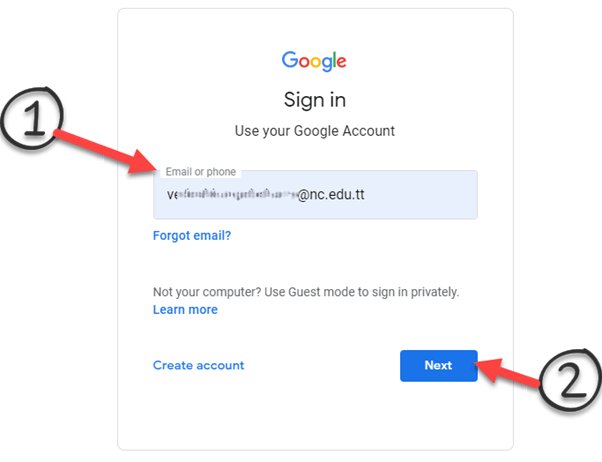
Step 3

Enter your sign in information using the full email address then Click on next

Step 4

Enter your password and click next:

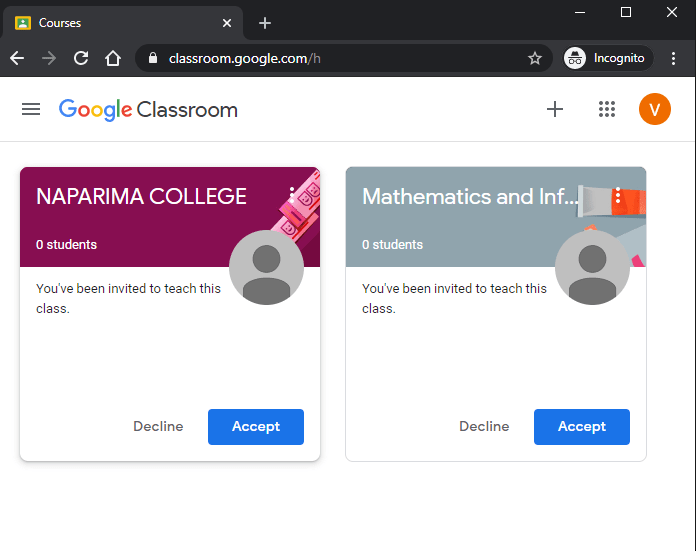
Step 5 – Done!

After step 3, you’ll be redirected to your google classroom dashboard/ home. My home is shown below:

© 2020 Vedesh Kungebeharry. All rights reserved.