Physical Care for Computer Systems

What’s happening in this picture?

Laptop overheating due to dust-clogged internal heatsinks in 2.5 year old laptop
 Example of how laptop performance slowly declines due to airborne dust slowly collecting on internal heatsinks, reducing performance and increasing noise from high speed fan operation. Eventually the heatsink covers completely, stopping all cooling airflow no matter how fast the fan spins, and the laptop begins to overheat from even just minor load.
As shown in the top-left image, the external appearance of air intake vents provides no indication whatsoever of the internal clogging, and simply blowing air backwards through the exposed heatsink vents is not enough to remove this buildup. Instead the laptop must be disassembled and the dust and lint removed with a ESD-safe vacuum cleaner.

This photo montage was created from a 2.5 year old Dell XPS M170 laptop.

DMahalko, Dale Mahalko, Gilman, WI, USA -- Email: dmahalko@gmail.com, CC BY-SA 3.0 <https://creativecommons.org/licenses/by-sa/3.0>, via Wikimedia Commons

Discussion

Look at the video below for more context:

In Class Assignment

 Create a table showing the dos and don’ts of caring for a computer.
Use the following structure:

Risk to consider Do Don’t
{put risk here} {good practice here} {practice to avoid}

Portfolio Assignment

Update your table to ensure that you have covered the following criteria/areas:

Adverse temperatures; blocked vents;

Dust; Liquids; Magnetic fields; Shutting down;

Unplugging when not in use; Cleaning screen, keyboard;

Battery charging cycles; Repetitive use of certain keys;

Complete the table in your ICT notebook.

Create a hand written copy of your table, that is meant to be inserted into your ICT portfolio for marking.

Suggested Solution to above assignment

Risk to consider Do Don’t
Temperature Use and store your computer system in a cool area. Do not store or use your computer in a heated environment.  (e.g. leaving a laptop in a hot car; Do not use your computer system in a heated room, stored in direct sunlight)
Vents Do use your computer in an environment with sufficient ventilation.   Do clean vents regularly. Ensure that vents are not blocked during use.   Do not use a laptop resting directly upon a bed or carpeted area.
Dust Do use your computer in a dust free environment. Do not allow for dust to build up on your computer system over time.
Liquids Do use your computer in a dry area. Do not use liquids near your computer.
Magnetic fields   Do not use computer systems near objects which produce large magnetic fields. E.g. refrigerator, washer, dryer and large subwoofer speakers.
Shutting Down Always shut down your using the provided interface, e.g. the windows shut down menu.  
Unplugging   Do not unplug your computer while using it.
Cleaning the screen Do clean your screen regularly.


Do not use cleaners that are not meant to clean your screen.   Do not use water or a damp cloth to clean your screen.
Keyboard care/damage Do use compressed air canisters to clean your keyboard.   Do use low powered vacuum cleaners on your keyboard Do not press the keys on your keyboard excessively hard.
Laptop charging   Do not overcharge your laptop

Update:

Added video discussion (Wed 29th Sept 2021)

Added image for set induction (Wed 13th Oct 2021)

© 2019  Vedesh Kungebeharry. All rights reserved.

Modem

A modem converts a computer’s digital signal   to an  analogue signal for transmission over a network;  and converts analogue signals from a network back to digital signals.

Converting digital to analogue is called modulation.

Converting analogue to digital is called demodulation.

The word modem is short for modulator demodulator.  

© 2019  Vedesh Kungebeharry. All rights reserved.

Peripheral Device

Definition:  Any input or output device that connects to the system unit of a computer system.

Examples include : Mouse, Monitor, Keyboard, Printer.

Peripheral devices do not aid in the system unit’s main task , i.e, computing.


© 2018  Vedesh Kungebeharry. All rights reserved.


Computer Hazards

There are various hazards to consider when using computer systems.  Employers take steps to educate employees on safe practices as well as provide proper equipment to promote a safe work environment.

It is also important to be aware of computer hazards and how to use computer systems safely at home.

Eye strain

The eyes can be come hurt or damaged when staring at a screen for long periods of time without a break. Flickering monitors, brightly lit screens, and glare can contribute to eye strain.

Depiction of a person suffering from eye strain
https://www.myupchar.com/en, CC BY-SA 4.0 <https://creativecommons.org/licenses/by-sa/4.0>, via Wikimedia Commons

Symptoms include:

  • Blurred vision
  • Eye pain
  • Burning in Eyes
  • Headache
  • Nausea

You should:

  • Use properly working monitors or screens
  • Use Anti-glare screens or monitors
  • Reduce the intensity of brightly lit screens
  • Use screens that display text that is clear and easily readable

Back Ache

Lower back pain
Injurymap, CC BY 4.0 <https://creativecommons.org/licenses/by/4.0>, via Wikimedia Commons

Poor posture can contribute to pain and stress of the back and neck.

You should:

  • Use an adjustable ergonomic chair
  • Use an adjustable monitor

Repetitive Strain Injury (RSI)

This is muscle or nerve injury caused by repetitive movements over a long period of time.

Any part of the body that performs repetitive actions can be subject to RSI.

Some examples of actions that can lead to RSI

Symptoms of the affected areas include:

  • Pain and Tenderness
  • Throbbing pain
  • Stiffness
  • Reduced range of motion
  • Numbness
  • Weakness
  • Cramps

You should:

  • Practice using good posture and technique when doing repetitive tasks
  • Take frequent breaks
  • Use ergonomically designed equipment

Carpal Tunnel Syndrome

Carpal tunnel syndrome isBruceBlaus. When using this image in external sources it can be cited as:Blausen.com staff (2014). “Medical gallery of Blausen Medical 2014”. WikiJournal of Medicine 1 (2). DOI:10.15347/wjm/2014.010. ISSN 2002-4436., CC BY 3.0 https://creativecommons.org/licenses/by/3.0, via Wikimedia Commons.

Force on the wrist and bad posture contributes to carpal tunnel syndrome, which in this case, makes it a form of repetitive strain injury.

Carpal Tunnel Syndrome
BruceBlaus. Blausen.com staff (2014). "Medical gallery of Blausen Medical 2014". WikiJournal of Medicine 1 (2). DOI:10.15347/wjm/2014.010. ISSN 2002-4436., CC BY 3.0 <https://creativecommons.org/licenses/by/3.0>, via Wikimedia Commons

Symptoms include:

  • numbness, tingling, or burning sensations in the thumb and fingers, in particular the index and middle fingers and radial half of the ring finger[1]
  • wrist pain
  • Pain an strain in the upper forearm or arms
  • Loss of grip strength in hands

You should:

  • Use wrist stretching and exercise as a preventative measure
  • Take frequent breaks
  • Use ergonomically designed equipment

Hearing loss

Bose QuietComfort 25 Acoustic Noise Cancelling Headphones with Carry Case
Florian Fuchs/Wikipedia/CC-BY-SA 3.0, CC BY-SA 3.0 <https://creativecommons.org/licenses/by-sa/3.0>, via Wikimedia Commons

Hearing loss and damage can occur by listening to moderately loud sounds and music for long periods of time.

Symptoms include:

  • Permanent partial loss of hearing
  • Ringing in ears

You should:

  • Use headphones at a safe and low volume level
  • Reduce your exposure to loud sounds when playing videogames or watching videos
  • Ensure that you start using audio devices at low levels first and then adjusting the volume to safe levels.
  • Set all volume levels on hardware controls to low when you are finished using devices.

Computer Addiction

Internet addiction
Sam  Wolff from Phoenix, USA, CC BY-SA 2.0 <https://creativecommons.org/licenses/by-sa/2.0>, via Wikimedia Commons

This refers to excessive or compulsive use of computer systems and devices such that an individual personal , social and professional life is affected negatively.

Symptoms include[2]:

Physical

  • Backache
  • Headaches
  • Weight gain or loss
  • Disturbances in sleep
  • Carpal tunnel syndrome
  • Blurred or strained vision

Psychological / Behavioral

  • Feelings of guilt
  • Anxiety
  • Depression
  • Dishonesty
  • Euphoric feelings when in front of the computer
  • Unable to keep schedules
  • No sense of time
  • Isolation
  • Defensiveness
  • Avoiding doing work
  • Agitation

Helpguide.org provides the following tips for helping someone who is addicted to a computer or the Internet[3]:

  • Introduce the Internet addict to other people who handle their use of the Internet reasonably.
  • Serve as a good role model for the Internet addict by properly managing your own use of computers and the Internet.
  • Support a person’s desire for change if it appears that he or she is an Internet addict.
  • Talk to the person about your concerns that he or she may be an Internet addict.
  • Get the person involved in interests that aren’t related to the Internet.
  • Encourage an Internet addict to seek professional counseling.

Radiation from mobile phones

Mobile phones use and produce electromagnetic radiation.  Electromagnetic radiation is dangerous in high doses; however, international manufacturing standards prevent the production of mobile devices that are dangerous for use.

Cell phone towers produce large amounts of electromagnetic radiation and can be very harmful in to persons in close proximity.  People should not come within 1500 feet ( 460 meters) of a cellphone tower, or be in an area of overlap of 6 cellphone towers.[4]

Closure – Discussion on Content after Reading/Study

See the video below:

Update: Added video discussion (Wed 29th Sept 2021)

© 2018  Vedesh Kungebeharry. All rights reserved.

[1] https://en.wikipedia.org/wiki/Carpal_tunnel_syndrome#Signs_and_symptoms

[2] https://www.psychguides.com/guides/computerinternet-addiction-symptoms-causes-and-effects/

[3] https://www.psychguides.com/guides/computerinternet-addiction-symptoms-causes-and-effects/

[4] http://electromagnetichealth.org/electromagnetic-health-blog/emf-help-blog%E2%84%A2-5/

Data and Information

Definition: Data are raw facts and statistics that have been gathered as input  for processing.

Definition: The output of data processing is information; i.e the results of data processing.

Example:   The heights of each student in a class can be gathered as data   for analysis. e.g

150, 160, 150, 161 etc.

The data can be  analyzed or processed  to determine the height of the tallest student and the average height of students in the class. The processed values   are called information.


© 2018  Vedesh Kungebeharry. All rights reserved

What is hardware?

1448px-Personal_computer,_exploded_6.svg

Image Credit: https://en.wikipedia.org/wiki/Computer_hardware#/media/File:Personal_computer,_exploded_6.svg

Definition: Computer Hardware refers to all the physical components of the computer system.

Hardware refers to all physical components of a computer system including:

  • All internal components to the system Unit (ALU,CU,RAM, Hard Disk Drive)
  • All external components (input, storage and output devices)

In Class Challenge!

Can you list all hardware items from 1 to 16 in the picture above?

(Note: leave out #12)

Copyright  © 2018 Vedesh Kungebeharry. All Rights Reserved.

The Functions of the Main Components of a Computer System

The  hardware components include the keyboard , monitor , cpu (processor) an the hard drive. In this lesson, we wish to observe the main functions for each component category.

The Logical Steps For Data Processing

Data processing has a logical organization divided into 4 main steps functions.

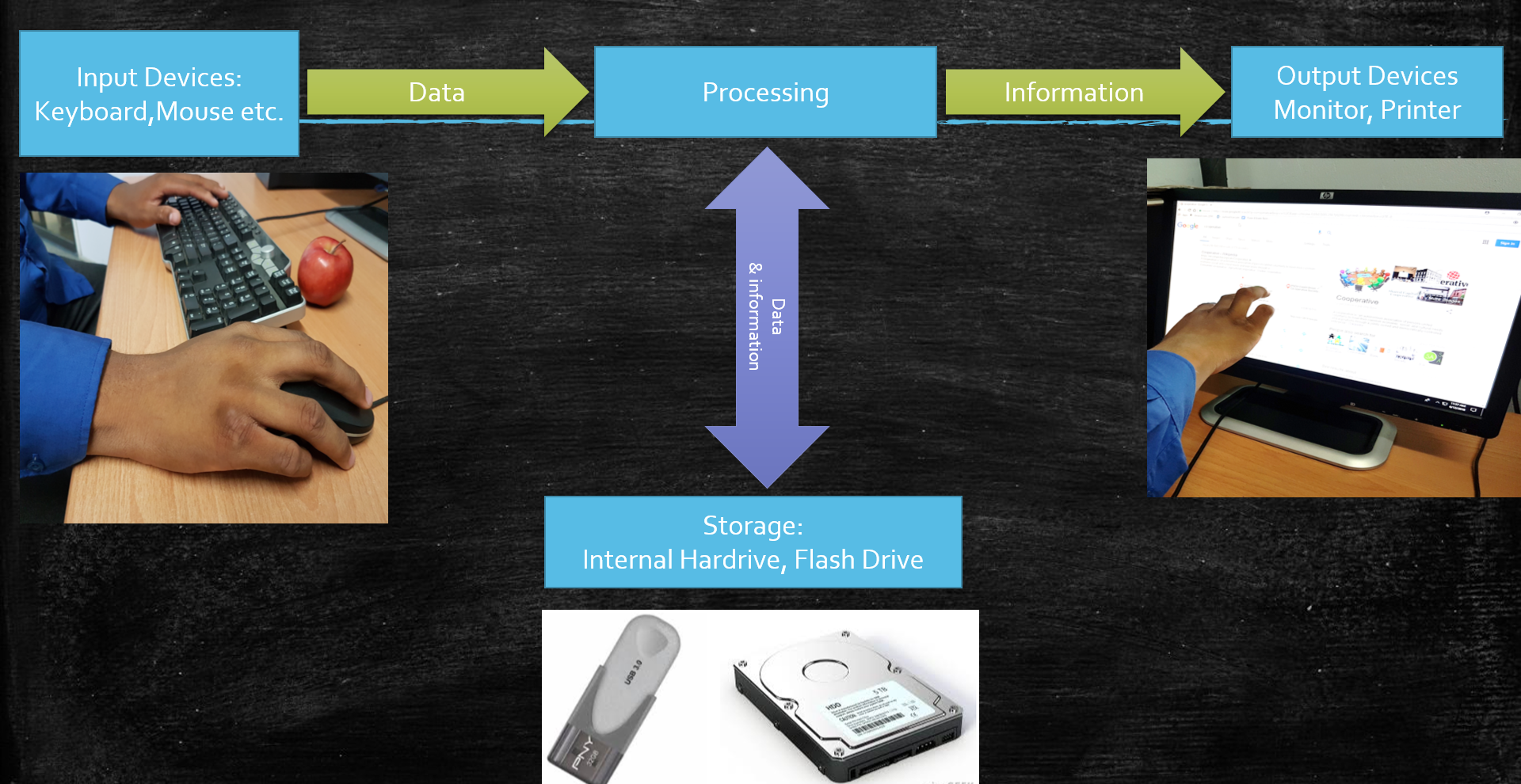
Computers input  data via input devices, processes the data to produce information which is in turn output to the user via output devices.   The results of processing or even the captured data can be stored on storage devices.

IPO

Input : to get data into the computer system

Processing: perform some operation on data as directed by software instructions.

Output: to make the results of processing (information) available to the computer user.

Storage:  to store data and information for future use.

IPO-in-context

© 2018 Vedesh Kungebeharry. All rights reserved

Computing Disciplines

Computing disciplines are sometimes fundamentally distinct or may differ subtly. The difference among disciplines originates based on the use of computer systems  as a tool  and for the purpose of further developing the tool.


Computer Technology


Computer Technology is the broad use of computers to solve problems.


Information Technology (IT)


Information technology is the study and use of computer technology for effective information storage, access, and manipulation; that is, information management.


Information and Communications Technology (ICT)


ICT  is an extension of IT, in includes effective information management across all major communication channels including telephone, wired and wireless computer networks.


Computer Science


Computer science is a branch of science which deals with the fundamental principles of computer design and use.

Computer science focuses on computer architecture and how to program computers to make them work effectively and efficiently[1].

[1] Computer Concepts (2011) p514


© 2018 Vedesh Kungebeharry. All rights reserved

Ergonomics

Definition: Ergonomics is the science of designing objects for safe and efficient use by the people who use them.

It is usually applied to employees and the tools and furniture they use in the workplace.

Required Reading : How to sit at a computer – https://www.wikihow.com/Sit-at-a-Computer


Portfolio Assignment

Use the internet to find a suitable picture showing how one should properly sit at a computer.


Print the picture and attach it to a page with the following details as illustrated in the diagram below:

The proper way to sit at a computer

By ___[Student Name]______

Date: ____________________


[IMAGE GOES HERE]


Insert the page into your ICT portfolio.


© 2018  Vedesh Kungebeharry. All rights reserved

Typing – Practical Exercise

For this exercise, you must download and install TIPP10 using the following link:

https://sourceforge.net/projects/portableapps/files/TIPP10%20Portable/

The version of TIPP10 used in this lesson is 2.1.0

Exercise

  1. Start TIPP10
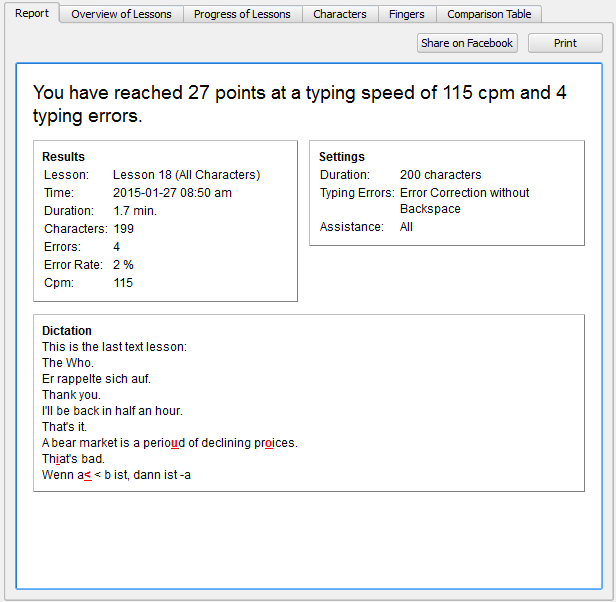
  2. Select Lesson 18 and set the duration of the lesson to 300 characters.tipp10Tut01
  3. Click Start Training.
  1. Get your hands into position and press the spacebar to start.

tipp10Tut02


  1. At the end of the lesson, display your results to your teacher:tipp10Tut03


Credit: Screenshots taken fromTIPP10 Portable version 2.1.0.

See: https://www.tipp10.com/en/


© 2018  Vedesh Kungebeharry. All rights reserved