Creating a button to submit a Word processing Form as an email Attachment
From the developer tab select Command Button:
Change the button’s name:
Right click on the button and select edit:
The button text now becomes editable, change it to what best describes the button. In this case, the text was changed to “Save Document and Send via Email”:
(The text was too long, so the button was widened to display all text.)
Set up the button to send the email when clicked:
Right Click the button and choose view code:
A visual basic window will popup. This gives a place to put some code that will be executed when the button is clicked
Such that it is within the button click sub routine:
You may now close the Visual Basic window.
Now , when the button is clicked, you computer’s default mail client will be opened with the form attached for sending via email.
Note that the method above does not allow for setting a recipient’s address in the opened mail client. If you would like to specify a recipient address and email subject, use the following code within the click subroutine:
Activedocument.HasRoutingSlip = True
With Activedocument.RoutingSlip
.Subject = "New subject goes here"
.AddRecipient "Firstaddress@Mail.com"
.AddRecipient "Secondaddress@Mail.com"
.Delivery = wdAllAtOnce
End With
Activedocument.Route
A mail merge is the term used when a database of recipients and other fields are placed (or merged) onto a template letter to produce a mass mailing.
Basically , a template document is created using a list of names. e.g:
Template Document (Primary Document)
List of names (Data source or Secondary Document)
Steps to create a mail merge
These steps vary silghtly from version to version of microsoft word, but the principle is the same. In this case, I’m using the version of microsoft word as current as January 2020.
Create a new document
write and format the basic idea for your letter
save your document. This document is your Primary Document (Template).
Click on Mailings -> Select recipients -> Type new list.
Use the “New Entry” button to add new records. Add as many as you need.
Click on “ok”. Save your list. This document is your secondary document (Data Source).
Finally, from the mailings ribbon, click on Finish and merge -> Edit individual documents. This creates a new document from the previous two. This document is your Merged document (Mass mailing).
These videos were chosen for each topic because they cover the subject matter in a relevant context. They definitely were not created specifically for the CSEC Syllabus, however , they do address the fundamental concepts in real world scenarios.
Distinguish among the major types of computer systems in terms of processing speed, storage and portability
Major types:(a)Super Computers (for example, Cray).(b)Mainframes (for example,IBM zEnterprise System).(c)Desktop systems.(d)Mobile devices (for example, laptops, notebooks, netbooks, smartphones, tablets and game consoles).(e)Embedded devices (for example,special-purpose systems such as controllers in microwaves, car ignition systems, answering machines).
Explain the functions of the major hardware components of a computer system;
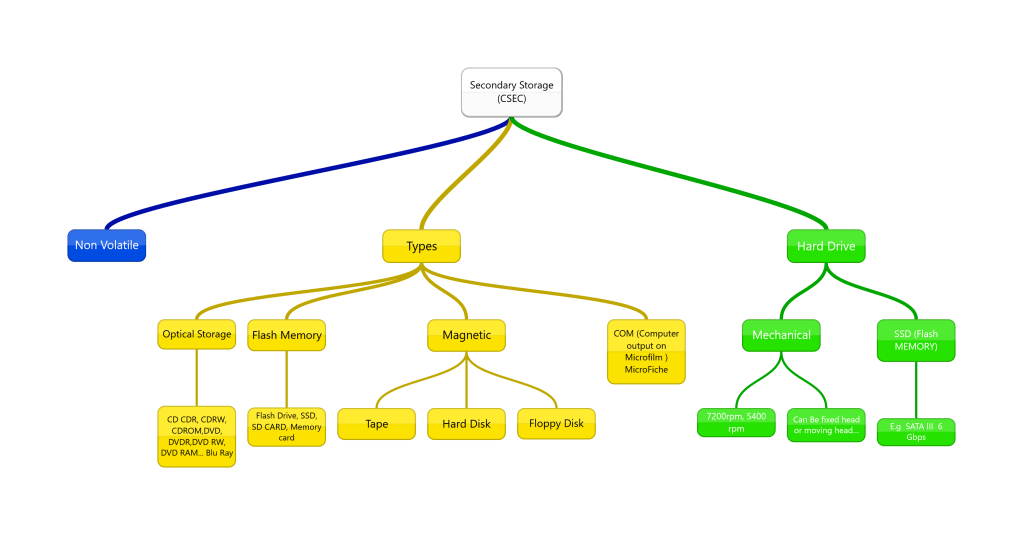
Major components: input, central processing unit,Primary memory (RAM and ROM),secondary storage, output.(a)Secondary storage devices: hard disk,magnetic tape, flash drive, memorycard, and optical disks (CD, DVD and Blu-Ray).(b)Units of storage: bits,bytes, kilobytes,megabytes, gigabytes, terabytes
Select appropriate input/output devices to meet the needs of specified applications;
Associate the following devices with suitable applications:(a)Input:Optical mark reader (OMR), character readers (OCR,MICR),mouse,joystick,barcode reader, document scanner,light-pen, touch terminals,voice response unit, Touch Screens (tablets, point of sale, ATM),keyboard,digital camera,biometric systems, sensors, remote control, sound capture,pointing devices,webcam.(b)Visual output:Printers (laser, inkjet, dot matrix, thermal, plotters, 3D Printers),microfilm.(c)Audible output: speakers,headphones,earphones.
Explain the role of the different types of software in computer operation;
System Software: Operating System, Utilities.Application software: general-purpose and special-purpose; integrated package; source: off the shelf, custom-written, and customized.
Discuss the relative merits of the various types of user interface;
Evaluate the suitability of a given computer system for a specific purpose;
Basic knowledge of system specification needed for purposes such as: to run a video game, web browsing, graphic design, video editing, and desktop publishing. Criteria:(a)Processing speed (CPU type and speed); (b)Memory (RAM);(c)Secondary storage (capacity and speed);(d)Types of software; and,(e)Input/Output devices.
Cable problems (for example, loose cables).Monitor problems (for example, improperly adjusted monitor controls).Printer problems (for example, changing printer cartridges).Battery problems (for example, loose or dead battery).
Distinguish between data and information;
Data as raw unprocessed facts;information as processed data.Sources of data and information (people, places and things).Document types: turnaround document, human-readable and machine-readable forms; hard copy, and soft copy.
Differentiate between validation and verification of data;
Difference between validation and verification.
Identify appropriate validation and verification checks given a particular scenario;
Methods of validation: range check,reasonableness checks, data type checks, consistency checks, presence, format and length.
Select appropriate file organisation for particular application.
File access methods: sequential, serial, direct and random.Application areas: archiving, payroll file, real time systems.
Distinguish among types of networks;
Types of networks (local area network, metropolitan area network, wide area network, mobile network).(a) Concept of mobile network as radio- based common carrier.(b) Overview of mobile networks: from 2G to current. (Knowledge of the inner workings of mobile systems is NOT required)Wireless network technologies (for example, Bluetooth, Wi-Fi, hotspot).Level of privacy (intranet, extranet, Internet).
Assess the importance of mobile communication technologies as a component of modern communication networks;
Suitability of mobile networks to various applications (for example, education, commerce, and journalism).
Explain the interrelationship among keyWeb technology concepts.
World Wide WebHypertext Markup Language.Hypertext Transfer Protocol.Hyperlinks.Web Server.Web Page.File Transfer Protocol.Web Browser.Uniform Resource Locator.Upload and download.
This post contains a gif
image that is
approximately
9 MB in size.
Introduction…
You’re going to wish that your teachers started excel with a pivot table instead of teaching you formulas and filters, some of which can be complex to understand and difficult to put into practice. I guess teachers know that our absolute addressing labclass would be interruptedwith , “You should’ve just used a pivot table!”
What are they and what do they do?
Pivot tables are new tables that are created from an existing table that contain custom summary features for your original table’s data.
For example, consider the following data:
Employee #
Name
Region
Sales Commission For January
# Items Sold
1
Roly Basima
Americas
1850
1
2
Louna Reba
Africa
2830
7
3
Cole Khayriyya
Caribbean
1050
5
4
Khalida Fuad
Caribbean
2280
7
5
Perlie Shanelle
Asia
1510
3
6
Briscoe Benjamin
Asia
1600
1
7
Misha Street
Americas
4600
8
8
Janice Kemplin
Caribbean
1830
2
9
Aracelis Oyler
Africa
2930
4
10
Alvina Coppola
Africa
1770
7
Figure 1 – Raw data (note that all data was randomly generated.)
You could quickly arrive at a summary view:
Pivot table showing a summary of our data.
This takes about 20 seconds and requires no knowledge of formulas.
The proof is shown in the gif below:
Inserting a Pivot Table in less than 20 seconds.
Creating a pivot table from our data
Copy and paste the data from the table above (Figure 1) into a new excel workbook. The result is shown below:
2. Select all the data that will be used to create your pivot table:
3. Click on the insert tab on the ribbon, and choose Recommended Pivot Tables :
4. Choose a suggested pivot table that you’d like to insert. In this example, we chose the third one. Click “Ok” to insert the table.
5. After Clicking on “Ok” (from step 4), Excel inserts your pivot table on a new sheet. See the result below:
Resulting pivot table
Making sense of your pivot table by manipulating it’s rows, columns and values.
A demonstration of how to manipulate the pivot table in the video below:
Using a pivot table effectively.
Download the finished tutorial from the video here:
A pivot table can help you to make strategic decisions based on your operational data. In our example above, we look at some sale information for the month of January (Operational Data) and create a summary (Strategic Data) to make strategic decisions.
Strategic decisions are made by the leaders of your organization (by you if you’re the leader) and affects how you approach your next set of goals.
From our example, we see that the largest commissions are paid to our sales people in the African continent who also sold the most items in January. Using that information, we may want to communicate with our sales force in Africa to determine the causes and try to apply their methods fro success in other regions.
Our assumption becomes, “Our African Sales force seems to be motivated and practice good methods in selling our products. We must investigate if this is true by comparing their methods to other regions.”
From the assumption above, we can now make our first strategic decision:
Monitor sales in Africa to see if the trend continues
If we find our assumption to be true we can now make the following strategic decisions and plan:
2. Learn the best practices from our African Sales Force
3. Start a training program for our entire company scheduled to run in the month of July .
In class exercise
Describe any other scenario that can result after analyzing the pivot table from our example.
Be sure to read the comments at the start of each function to get an idea of what needs to be implemented. I’ll be happy to answer any questions that you have in class.




 Island Class