Create an Online website using the service
provided by http://wix.com
Your website must contain coherent and
consistent information on a topic of you choosing. Ensure that your chosen
topic which is suitable for a student you age and one that your parents will be
proud of.
Include a suitable layout, and pages for “About”,
“Contact”, and a Homepage.
A modem converts a computer’s digital signal to an analogue signal for transmission over a network; and converts analogue signals from a network back to digital signals.
Converting digital to analogue is called modulation.
Converting analogue to digital is called demodulation.
The word modem is short for modulator demodulator.
Information technology systems produce data that is usually recorded or stored. This information is used to make strategic decisions to capitalize on opportunities, and tactical decisions to improve efficiency.
As time passes on, some of the older recorded data becomes less useful in decision making and is accessed infrequently. In this case, we make an archive of this data.
Definition: An archive is a historical copy of information that is important to an organization.
Archives can be used to look back on past decision making, or to gain a better understanding of an organization’s history.
Computer output on microfilm and magnetic tape can be used for archival purposes.
File access
The data is usually stored onto the tape in the order it was exported from the original system, and may be to some extent in sequential form.
However, after many years the original system’s data structure may change and differs from the sequence on tape.
This means that when searching for a record for research purposes, all the data must be examined because the tape’s data structure may be forgotten or unknown; thus making it a serial access medium.
There are various hazards to consider when using computer systems. Employers take steps to educate employees on safe practices as well as provide proper equipment to promote a safe work environment.
It is also important to be aware of computer hazards and how to use computer systems safely at home.
Eye strain
The eyes can be come hurt or damaged when staring at a screen for long periods of time without a break. Flickering monitors, brightly lit screens, and glare can contribute to eye strain.
https://www.myupchar.com/en, CC BY-SA 4.0 <https://creativecommons.org/licenses/by-sa/4.0>, via Wikimedia Commons
Symptoms include:
Blurred vision
Eye pain
Burning in Eyes
Headache
Nausea
You should:
Use properly working monitors or screens
Use Anti-glare screens or monitors
Reduce the intensity of brightly lit screens
Use screens that display text that is clear and easily readable
Back Ache
Injurymap, CC BY 4.0 <https://creativecommons.org/licenses/by/4.0>, via Wikimedia Commons
Poor posture can contribute to pain and stress of the back and neck.
You should:
Use an adjustable ergonomic chair
Use an adjustable monitor
Repetitive Strain Injury (RSI)
This is muscle or nerve injury caused by repetitive movements over a long period of time.
Any part of the body that performs repetitive actions can be subject to RSI.
Some examples of actions that can lead to RSI
Symptoms of the affected areas include:
Pain and Tenderness
Throbbing pain
Stiffness
Reduced range of motion
Numbness
Weakness
Cramps
You should:
Practice using good posture and technique when doing repetitive tasks
Take frequent breaks
Use ergonomically designed equipment
Carpal Tunnel Syndrome
Carpal tunnel syndrome isBruceBlaus. When using this image in external sources it can be cited as:Blausen.com staff (2014). “Medical gallery of Blausen Medical 2014”. WikiJournal of Medicine 1 (2). DOI:10.15347/wjm/2014.010. ISSN 2002-4436., CC BY 3.0 https://creativecommons.org/licenses/by/3.0, via Wikimedia Commons.
Force on the wrist and bad posture contributes to carpal tunnel syndrome, which in this case, makes it a form of repetitive strain injury.
BruceBlaus. Blausen.com staff (2014). "Medical gallery of Blausen Medical 2014". WikiJournal of Medicine 1 (2). DOI:10.15347/wjm/2014.010. ISSN 2002-4436., CC BY 3.0 <https://creativecommons.org/licenses/by/3.0>, via Wikimedia Commons
Symptoms include:
numbness, tingling, or burning sensations in the thumb and fingers, in particular the index and middle fingers and radial half of the ring finger[1]
wrist pain
Pain an strain in the upper forearm or arms
Loss of grip strength in hands
You should:
Use wrist stretching and exercise as a preventative measure
Take frequent breaks
Use ergonomically designed equipment
Hearing loss
Florian Fuchs/Wikipedia/CC-BY-SA 3.0, CC BY-SA 3.0 <https://creativecommons.org/licenses/by-sa/3.0>, via Wikimedia Commons
Hearing loss and damage can occur by listening to moderately loud sounds and music for long periods of time.
Symptoms include:
Permanent partial loss of hearing
Ringing in ears
You should:
Use headphones at a safe and low volume level
Reduce your exposure to loud sounds when playing videogames or watching videos
Ensure that you start using audio devices at low levels first and then adjusting the volume to safe levels.
Set all volume levels on hardware controls to low when you are finished using devices.
Computer Addiction
Sam Wolff from Phoenix, USA, CC BY-SA 2.0 <https://creativecommons.org/licenses/by-sa/2.0>, via Wikimedia Commons
This refers to excessive or compulsive use of computer systems and devices such that an individual personal , social and professional life is affected negatively.
Helpguide.org provides the following tips for helping someone who is addicted to a computer or the Internet[3]:
Introduce the Internet addict to other people who handle their use of the Internet reasonably.
Serve as a good role model for the Internet addict by properly managing your own use of computers and the Internet.
Support a person’s desire for change if it appears that he or she is an Internet addict.
Talk to the person about your concerns that he or she may be an Internet addict.
Get the person involved in interests that aren’t related to the Internet.
Encourage an Internet addict to seek professional counseling.
Radiation from mobile phones
Mobile phones use and produce electromagnetic radiation. Electromagnetic radiation is dangerous in high doses; however, international manufacturing standards prevent the production of mobile devices that are dangerous for use.
Cell phone towers produce large amounts of electromagnetic radiation and can be very harmful in to persons in close proximity. People should not come within 1500 feet ( 460 meters) of a cellphone tower, or be in an area of overlap of 6 cellphone towers.[4]
Closure – Discussion on Content after Reading/Study
See the video below:
Update: Added video discussion (Wed 29th Sept 2021)
View the video below before studying the notes below. The video is not tailored specifically to our notes, however it builds a good context for proper use of information sources.
Information is used to make decisions that can impact the long term welfare of organizations or society as a whole. Information that has been retrieved electronically must be evaluated to be reliable.
On the lowest level of evaluation, we should consider the following criteria:
authenticity,
currency,
relevance,
bias
Authenticity (or Credibility)
This refers to the integrity of information or how correct the information is. Usually, we try to verify gathered information against other sources to establish that the information is accurate.
Credibility refers to the amount of trust we place in an information source being correct.
Established authorities are good sources of verification, e.g Organizations, experts in the field etc.
Accuracy
This refers to the correctness of discrete items in the information source and how complete the information is for it’s application.
Reliability
This refers to how consistent the information source is over time. For example, when monitoring temperatures related to climate change we may want to record the temperatures at consistent time intervals. Even though each individual recording may be accurate and precise, the lack of regular recordings can make the information unreliable when determining trends associated with temperature.
Currency (or Timeliness)
Information should be current, and recent enough to make problem solving and decision making reasonable and reliable.
In problem solving and decision making, all information is considered to have a life span for which it is appropriate.
Relevance
Information gathered should be relevant to the topic being researched and free from extraneous, cosmetic, and irrelevant details.
It should be appropriate for the tasks of problem solving and decision making.
Bias
Gathered information should be free from bias, i.e the information is objective and free from preconceptions.
A reputable institution should support source without bias in the information.[1]
Recall that data can be processed to produce information.
Information Sources
When searching for information, we may acquire our research from various sources.
Sources of information emerge from:
Interview experts in a field; people related to your research.
Books, Newspapers, magazines and journals.
Computer databases, company databases.
Websites on the internet.
Document Types
Most of the time, we can gather data and information from various documents.
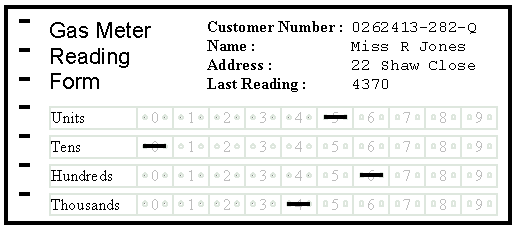
Turnaround documents
This is a document produced by a computer that can be used to record information by a human. The document with its new information can then be input into the computer system for further processing.
OMR and OCR are technologies that are widely applied in this process.
Definition: Data are raw facts and statistics that have been gathered as input for processing.
Definition: The output of data processing is information; i.e the results of data processing.
Example: The heights of each student in a class can be gathered as data for analysis. e.g
150, 160, 150, 161 etc.
The data can be analyzed or processed to determine the height of the tallest student and the average height of students in the class. The processed values are called information.
New secondary storages need to be formatted before use.
Disk formatting refers to preparing a secondary storage medium for use by the computer system.
This includes structuring the initial data on the disk so that new data can be stored and managed effectively.
ANTIVIRUS SCANS
A computer virus is malicious software that is harmful to computer programs and data.
They are usually created to damage or disrupt the functioning of computer systems for malicious purposes.
Protective antivirus software prevents infections from computer viruses and can remove existing viruses in computer systems.
Antivirus software removes existing viruses via scanning or searching through computer software and data for virus infections.
Software Updates
Both system software (including the operating system) and application software may require updates from the manufacturers for improvement to features and to fix existing issues. This process is sometimes automatic or may require intervention from the computer user.
Examples include Windows updates, MS Office updates.
Backups
A backup is a duplicate or copy of data. Computer systems are backed up to recover from accidental or malicious data loss or corruption.
Reasons for data loss include
Theft
Hardware Failure
Viruses
Fire
Natural Disaster
Usually the backup is stored off-site in another physical location to the computer system.
Backups can be scheduled automatically or performed manually by the user.
Disk Defragmenting
Files stored on a computer may not be stored in continuous blocks of data. A computer is most efficient when reading data that is stored in large continuous blocks.
Over time, files stored in computer system can become increasingly fragmented, beaning that they are stored in discontinuous blocks over the file system.
Defragmenting is the process by which files are re-joined into continuous blocks.
Defragmentation tasks are usually scheduled and managed by the operating system, but can be manually performed by the user.
Disk Cleanup
Disk cleanup refers to the process of removing redundant and useless files from computer storage to increase the free space capacity for new files.
Files are cleaned from the recycle bin and other temporary storage locations.
Windows operating system provides a utility that performs this task that is usually managed by the computer user.


 Island Class