Typing – Practical Exercise

For this exercise, you must download and install TIPP10 using the following link:

https://sourceforge.net/projects/portableapps/files/TIPP10%20Portable/

The version of TIPP10 used in this lesson is 2.1.0

Exercise

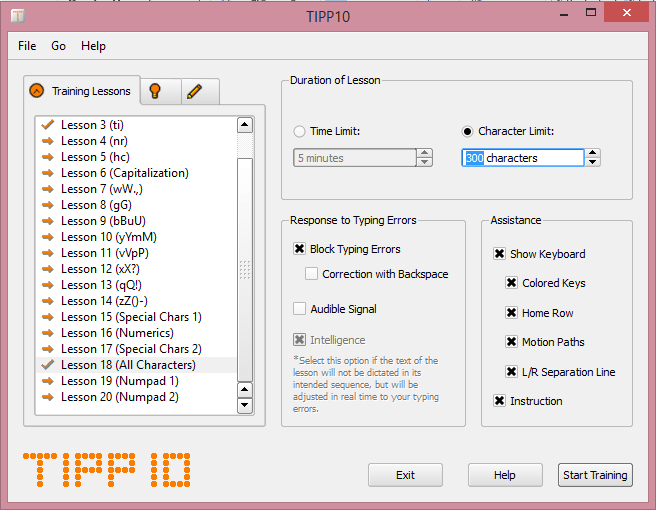
  1. Start TIPP10
  2. Select Lesson 18 and set the duration of the lesson to 300 characters.tipp10Tut01
  3. Click Start Training.
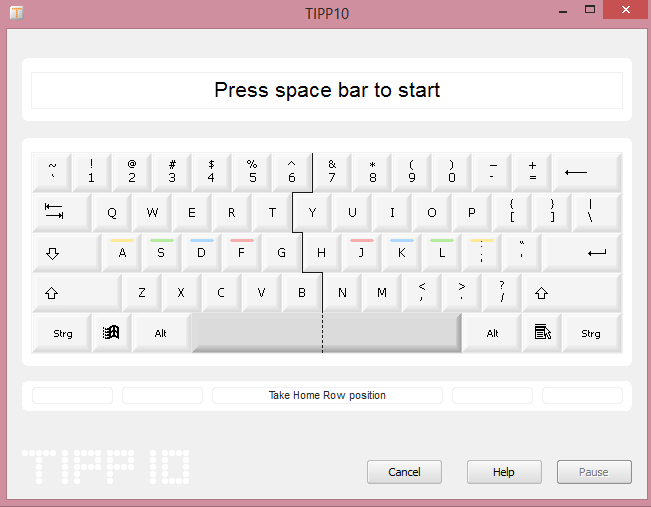
  1. Get your hands into position and press the spacebar to start.

tipp10Tut02


  1. At the end of the lesson, display your results to your teacher:tipp10Tut03


Credit: Screenshots taken fromTIPP10 Portable version 2.1.0.

See: https://www.tipp10.com/en/


© 2018  Vedesh Kungebeharry. All rights reserved

Typing using a QWERTY Keyboard

The best practice for typing using a QWERTY Keyboard can occur in two mains steps:

  • Align you fingers on the home keys. Your hands should gently rest such that your left pinky to left index fingers are over the ASDF keys and your right index finger to right pinky hovers over the JKL;
  • Each key should only be pressed by the finger as shown in the chart below:
    Keyboard Finger Chart
    [1]


[1] https://www.shutterstock.com/image-vector/keyboard-finger-chart-left-right-include-297853160?drawer=open

© 2018  Vedesh Kungebeharry. All rights reserved

Keyboards and Keyboard Layout

Computer Keyboards


Definition: Computer Keyboards allow for users to input text.

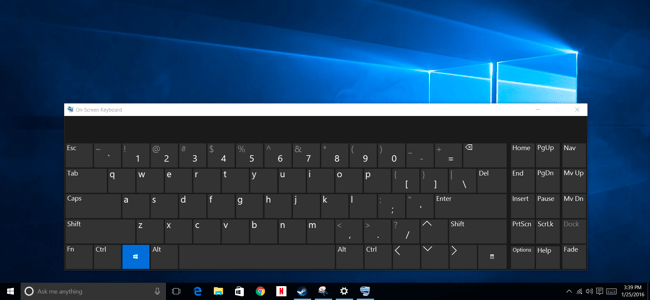
Computer Keyboards can be either implemented as physically as hardware or displayed by  software on a screen as an on screen keyboard.
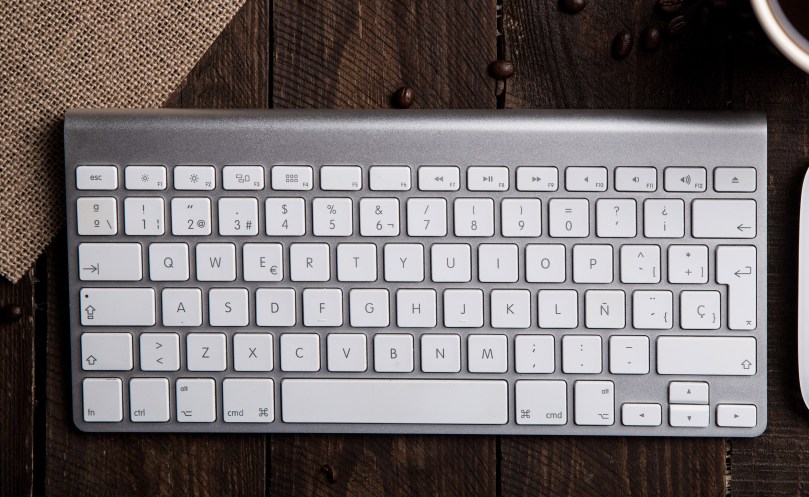
apple-keyboard-apple-mouse-background-585752 (1)Figure 2 – Physical Keyboard

on screen keyboard thewindowsplus.org-virtual-keyboard-windows-7-8-10[1]

Figure 3 – On Screen Keyboard

Keyboard layouts


Definition: Keyboard layout is the standard positioning of letters, numbers and symbols on a computer keyboard

There are many different keyboard layouts which are suitable for different purposes.

In the English language, the most popular ones are the QWERTY keyboard and the newly popular ABC Layout keyboard.


QWERTY Keyboard Layout


The QWERTY layout keyboard is the most popular. The Keyboard gets its name from the arrangement of letters found on the first lettered row of the keyboard:

apple-keyboard-apple-mouse-background-585752 (1)

Figure 4 A Qwerty Keyboard


The layout of the keyboard was influenced by how difficult it was to repair the keyboard when damaged.

Keyboards were originally used on the first typewriters.   The typewriters were mechanical in nature and used a close arrangement of thin long hammers on levers triggered by the pressing of keys.

Typewriter hammer press animated

Figure 5 – Hammers of a typewriter  (from:typewriters.ch/images/underwood_noiseless_portable_gif.gif)

The original keyboard layout for a typewriter was alphabetical.  The problem was that typing at high speeds caused adjacent hammers to tangle or jam.

The keys were re arranged  to a random order to deliberately slow down typing speeds in order to prevent tangles and other mechanical issues.

In other words, the keyboard was made difficult to learn to prevent typewriter breakdown.

Because typewriters using this layout became popular due to less breakdowns, the keyboard layout became widely adopted, and this layout has come to be expected  in all modern computer systems due to it’s familiarity and conventional use.

ABC Layout Keyboards


ABC Layout Keyboards are laid out in alphabetical and numerical order as shown below:
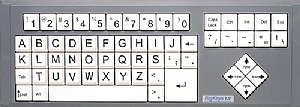
ABC Keyboard[2]

Figure 7 ABC Layout Keyboard


This keyboard layout was only popular among hobbyists and was only designed as a proof concept. However, with the emergence of software onscreen keyboards for searching in popular apps such as youtube and Netflix, they have risen in popularity.

Most younger kids have a difficult time using a qwerty keyboard for the first time due to the difficulty in finding letters that are not in alphabetical order.

Because most kids (and some older users who don’t regularly use a computer) are already familiar with the order of the alphabet, the ABC layout is easy to learn for first time users.

Now, this keyboard layout has widespread use as an on screen keyboard on smart TVs and other touch screen apps because of its ease of adoption.

QWERTY users may find the ABC layout least difficult to adopt due to it’s logical alphabetical ordering.

What Are the main reasonS for other layouts ?


  1. Apart from hobbyist layouts, other layouts are used when the script (letter types ) are different in other languages. An Example is shown below:
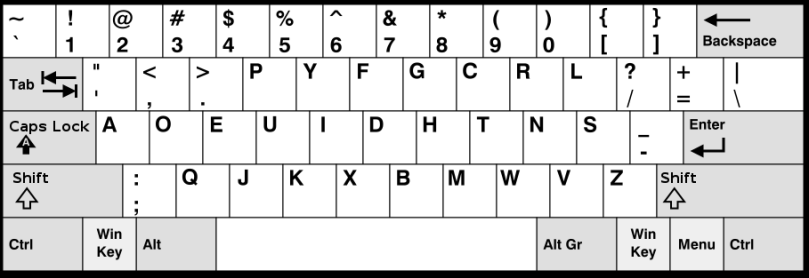
 

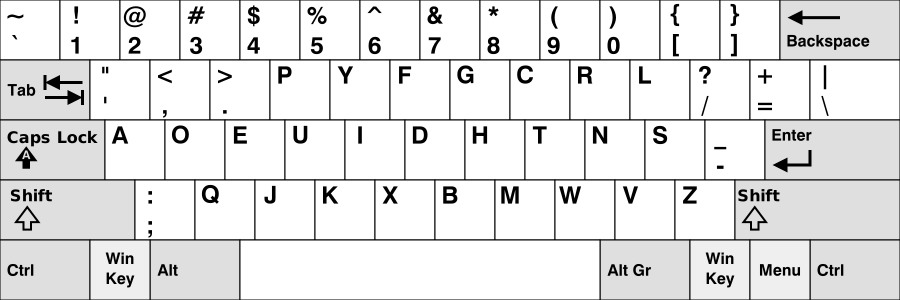
Devorak

[3]

Figure 6 Devorak Simplified keyboard

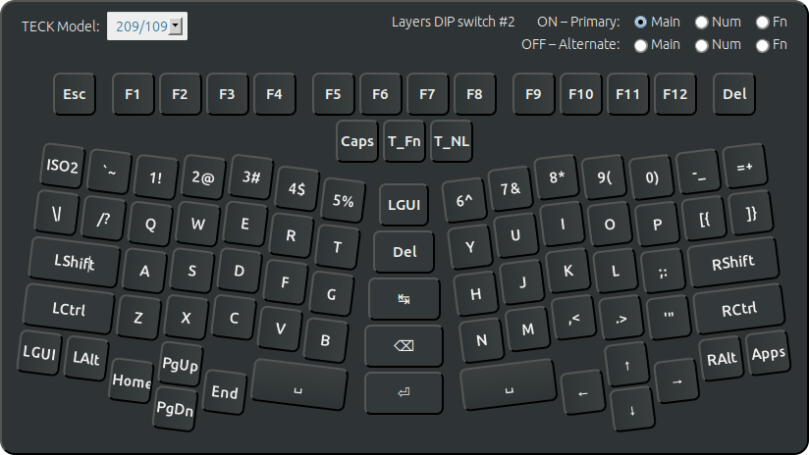
  1. Other Layouts are intended to improve ergonomics in order to reduce repetitive strain injury. An example is shown below:truly_ergonomic_keyboard_layout_2013-09-04[4]

[1] https://www.howtogeek.com/240288/how-to-use-the-on-screen-keyboard-on-windows-7-8-and-10/

[2] http://www.ergocanada.com/products/keyboards/big_keys/bigkeys_bklx.html

[3] https://upload.wikimedia.org/wikipedia/commons/2/25/KB_United_States_Dvorak.svg

[4] http://xahlee.info/kbd/Truly_Ergonomic_keyboard_layout.html

© 2018  Vedesh Kungebeharry. All rights reserved


Categories of Software

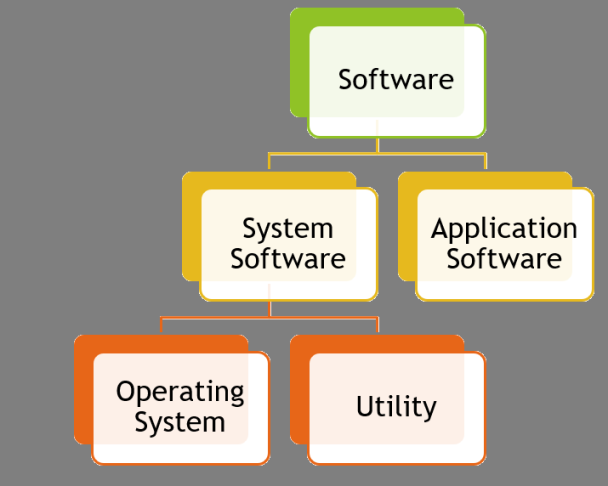
Software can be divided into 2 groups: application software and system software.

Software Categories

Application Software

Definition : Application software is used to perform user tasks.

For example, a computer user may prepare a letter using a word processor such as Microsoft word.

Other examples include Spreadsheet Software, Photo Editing software etc.

System Software

Definition: System Software is used to manage the hardware resources of a computer including maintenance and allowing Application Software to indirectly control the hardware.

The Operating system

Definition: The operating system is used to control the computers basic functions and control hardware.

For example, when using a word processor the operation system allows for accepting input from the keyboard and mouse of the computer, and producing output to the monitor.

Examples of operating systems include:

  • Windows
  • Mac OS X
  • Android
  • iOS

Utility Software

Definition: Utility software is used to maintain and upkeep the computer system, or provide extended functionality to the operating system.

Utility software is designed to perform one task only.

For example, Windows Disk Cleanup maintains the system by providing a facility to remove unused or redundant files. This utility is provided by the windows operating system.

Disk Cleanup Screenshot

Other third party applications can extend functionality in the form of antivirus software, backup software etc.

© 2018 Vedesh Kungebeharry. All rights reserved
Wikis for online collaboration

What is a Wiki?

Definition:  A wiki is a website which allows users to add or edit content on its pages.  Users of the wiki can collaborate on some or all pages of the wiki.

Definition: Collaboration[1] is when people work with each other to complete a task. It involves co-operation and teamwork and the sharing of ideas, knowledge and skills to reach the same objective. The objective is usually creative in nature.

A well-known example of a wiki is Wikipedia an online user edited encyclopedia.

Wikis can be used to collect and maintain information on a subject or topic.  For example, a teacher can collaborate with students to collect and maintain information on the subject being studied in school.

Main Functions of a wiki

Wikis allow for :

  • Adding new content
  • Editing or Modifying existing content.
  • Deleting existing content (deleting pages)

Additional Features of a wiki

A wiki may be either private, public, or semiprivate.

Private wikis

Private wikis require users to register in order to create user accounts.  The content on the wiki is only viewable and editable on by  registered users.

Public wikis

Public wikis allow for the creation of user accounts but still allow for the public to view and edit information.

Semi Private wikis

Semi Private wikis allow for content to be viewable to the public and registered users.

Some topics may be locked for editing by unregistered users. However, unregistered users may add new pages and edit locked content.

Some topics may be only edited by small groups of specially selected registered users.

Advantages and Disadvantages of Wikis

Advantage Disadvantage
Quick generation of a large information resource due to many collaborators Users can add inaccurate or incorrect information
Easy to add and edit and improve on existing content Difficult to manage and remove incorrect information
Wiki collaboration does not require all users to work at the same time. biased information can be produced if the collaborator is biased.
Prone to vandalism, malicious users can intentionally distort information

UPDATES:

24th Sept 2022 – Fixed spelling error in title and changed url

© 2018  Vedesh Kungebeharry. All rights reserved
[1] https://kids.kiddle.co/Collaboration

What is Software?

Definition: Software is a set of instructions that a computer can follow to carry out a specific task.


Software can be thought of as programs that is run on any computer system, whether it be a videogame for entertainment or a word processor for productivity.

Software ultimately controls hardware, which are the physical components of the computer system. It’s important to note that hardware cannot function without being instructed by software to do something.

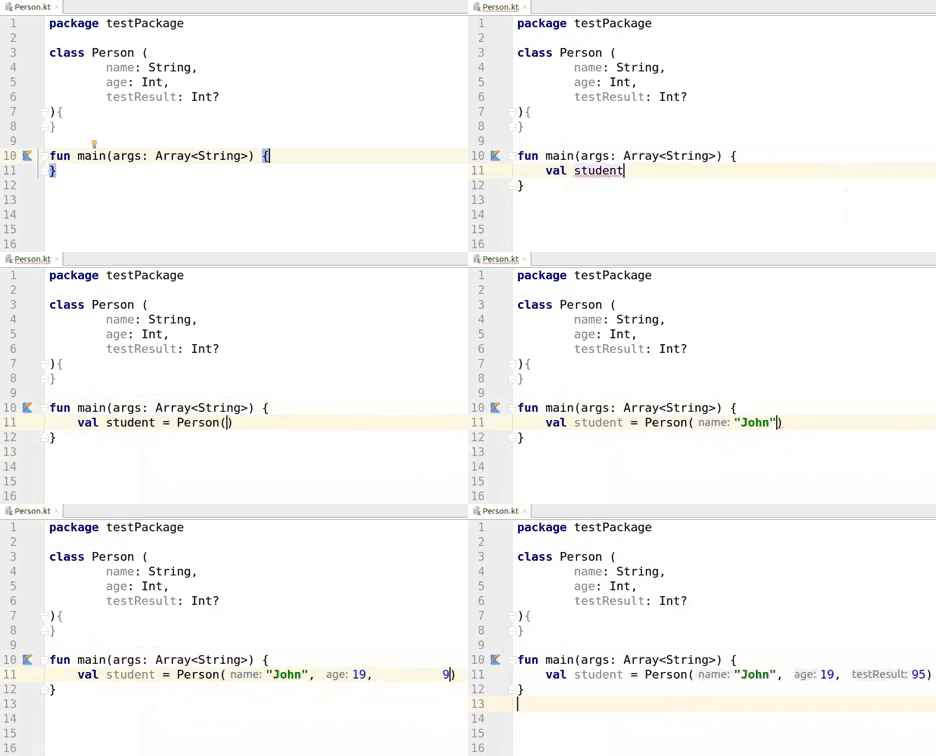
Software is made up of a sequence of instructions written in computer code.  We can think of software being made up of program code.

Kotlin in IntelliJ Idea - parameters hints

When you play a videogame, it’s the game’s software code that controls the hardware to produce sound and draw graphics on the screen.

GAME with C# Code 3
Figure 1 – A Video game with accompanying Program Code

Attributions to Media used in this post

Klapi, CC BY-SA 4.0 https://creativecommons.org/licenses/by-sa/4.0, via Wikimedia Commons

Updated Tuesday 26th October 2021 - Added note on program code, added gif image and media attributions.

© 2018 Vedesh Kungebeharry. All rights reserved