Before you click the green flag, can you look at a script and say exactly what it will do? Reading code like a computer is one of the most useful skills a programmer has. It helps you plan, spot mistakes and understand other people’s projects.
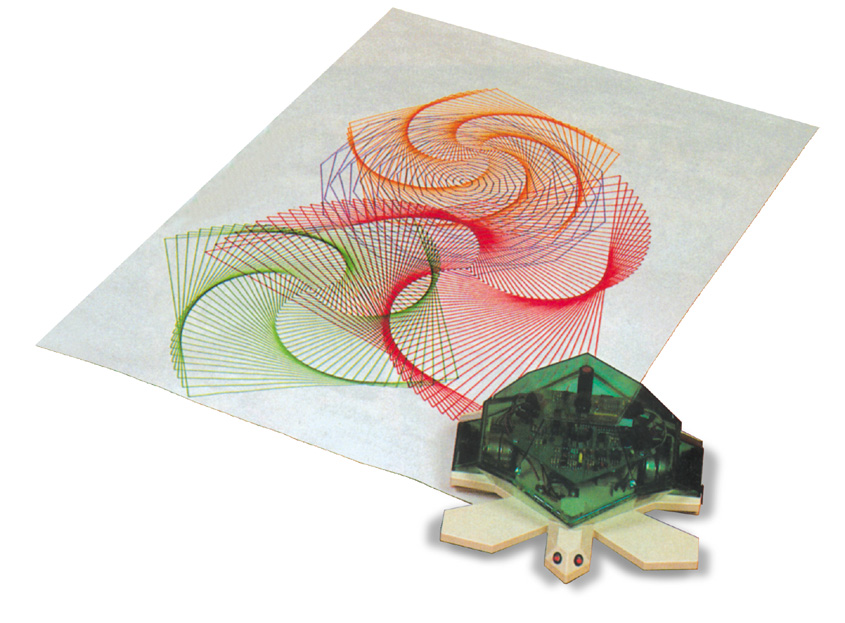
Image source: File:Turtle draw.jpg (Wikimedia Commons)

In this post:
- The big programming concepts: sequence, loops, conditions, variables, coordination, operators and testing
- How to read a script step by step
- Predict, then run: eight scripts to test yourself on, plus two Scratch drawings
- A concept-spotting activity, a group report and a quiz
The big ideas
| Concept | What it means | In Scratch |
|---|---|---|
| Sequence | Steps run one after another, in order. | Blocks snapped under each other |
| Looping (repetition) | Steps are repeated. | repeat 10, forever, repeat until |
| Conditions (selection) | Steps run only if something is true. | if … then, if … then … else |
| Variables | Named stores for values that can change. | set [score] to 0, change [score] by 1 |
| Coordination | Sprites and scripts work together at the right time. | broadcast, when I receive, wait |
| Operators | Arithmetic (+ − * /), relational (> < =) and logic (and, or, not). | The green Operators blocks |
| Testing | Running the program with different inputs to check it does what it should. | Clicking the green flag again and again, with different answers |
How to read a script
- Start at the hat block: what makes this script run? (Green flag? A key? A message?)
- Go down one block at a time, in order. Do not skip ahead.
- Keep a trace table on paper for every variable, and update it whenever a set or change block runs.
- For a loop, count the times round. Write down what changes each time.
- For a condition, work out whether it is true or false right now, then follow only that path.
- For a broadcast, find every when I receive script for that message.
- Finally, run it to check your prediction. If you were wrong, find the exact block where your thinking went off track.
Predict, then run: two drawings
Each project below uses the Pen. Read the description and predict the shape before you click the green flag.
Drawing Exercise 1: pen down, then repeat 4 [move 100 steps, turn ↻ 90 degrees].
Scratch project: Drawing Exercise 1 by kunge.
Drawing Exercise 2: pen down, then repeat 3 [move 100 steps, turn ↻ 120 degrees].
Scratch project: Drawing Exercise 2 by kunge.
Did you notice? In both, the number of repeats × the angle = 360°, one full turn, so the sprite ends where it started.
Activity: predict, then run
Try it: what will each script do?
Read each script carefully and choose your prediction. Then click Run it and check to see what really happens.
Script 1
when green flag clicked
pen down
repeat (6)
    move (60) steps
    turn ↻ (60) degrees
1. Predict: what will happen?
Script 2
when green flag clicked
pen down
repeat (4)
    move (100) steps
    turn ↻ (60) degrees
1. Predict: what will happen?
Script 3
when green flag clicked
set [score] to (0)
repeat (5)
    change [score] by (2)
say (score)
1. Predict: what will happen?
Script 4
when green flag clicked
set [x] to (7)
if <(x) > (5)> then
    say [Big]
else
    say [Small]
1. Predict: what will happen?
Script 5
when green flag clicked
ask [How old are you?] and wait
(you type 12)
say (join [Next year you will be ] ((answer) + (1)))
1. Predict: what will happen?
Script 6
when green flag clicked
set [total] to (0)
set [n] to (1)
repeat until <(n) > (4)>
    change [total] by (n)
    change [n] by (1)
say (total)
1. Predict: what will happen?
Script 7
when green flag clicked
set [mark] to (50)
if <<(mark) > (40)> and <(mark) < (50)>> then
    say [Grade C]
else
    say [Not a C]
1. Predict: what will happen?
Script 8
Cat:
when green flag clicked
say [Ready?] for (2) seconds
broadcast

Dog:
when I receive
say [Woof!] for (2) seconds
1. Predict: what will happen?
Watch: sequences, selections and loops
This short video explains three of the big ideas from this post: sequence, selection and loops.
Video: Computer Science Basics: Sequences, Selections, and Loops – LearnFree – https://www.youtube.com/watch?v=eSYeHlwDCNA
Activity: name the concept
Try it: which concept is this?
Choose the main programming concept used in each piece of a script.
| repeat (10) | |
| if <touching edge?> then | |
| set [lives] to (3) | |
| broadcast [StartGame] | |
| (score) * (2) | |
| <(age) > 12> and <(age) < 16> | |
| three blocks that run one after the other | |
| running a quiz with right, wrong and blank answers to check it works |
Group task: review a program
Your teacher will give your group a few short Scratch programs (or choose projects from this course, such as Catch the Apples or the Pass Mark Demo). For each one:
- Read the scripts without running them. List the concepts used (sequence, loops, conditions, variables, coordination, operators).
- Predict what the program will do. Write your prediction down.
- Run it with at least three different inputs or ways of playing. Did it do what you predicted? Does it do what it is supposed to do?
- Write a short typed report: what each program does, the concepts it uses, how well they suit the job, and anything that went wrong.
Self-check quiz
Click the best answer. You get feedback straight away; only your first click counts towards your score.
1. Which concept is shown by blocks that run one after another, in order?
2. if <x > 5> then … else … is an example of…
3. A loop runs repeat (3) [change [n] by 5] and n starts at 1. What is n at the end?
4. Which blocks let sprites coordinate their actions?
5. >, < and = are called…
6. Why should you predict before you run a program?
Related posts on islandclass.org
There is no older post on islandclass.org on reading and predicting code yet, so this post is the main lesson. The Scratch posts before it (from “Scratch: Moving and Controlling Sprites” onwards) have plenty of projects to practise on.
For later, in Forms 4–5 (CSEC IT): these go deeper and are for when you reach CSEC Information Technology.
- Operators in Algorithms: Arithmetic, Relational and Logical Operators, Truth Tables, MOD and DIV
- Testing Algorithms with Trace Tables (Desk Checks and Dry Runs)
Next: Debugging: Finding and Fixing Mistakes
Syllabus link: Forms 1–3 ICT curriculum, Module 5, Objective 5.17 (this objective has no number in the curriculum; it comes between 5.16 and 5.18) – interpret various programming concepts.
Attributions to media used in this post:
- Turtle draw.jpg – Valiant Technology Ltd. – CC BY-SA 3.0 (via Wikimedia Commons)
- Video: Computer Science Basics: Sequences, Selections, and Loops – LearnFree (YouTube)
- Scratch project: Drawing Exercise 1 – kunge (Scratch)
- Scratch project: Drawing Exercise 2 – kunge (Scratch)
Updates
2026/10/21
– Fixed the activity code so its buttons keep working.
© 2026 Vedesh Kungebeharry. All rights reserved.